How to Control Oracle Cloud (OCI) Resources Using OCI CLI
Introduction / Issue
In many OCI environments, administrators rely heavily on the web console to manage compute instances and resources. While this works, it becomes slow, error-prone, and inefficient when managing multiple environments or performing repetitive tasks like starting, stopping, or monitoring instances.
Cause of the Issue
The issue arises because:
- Manual console operations do not scale
- Repetitive tasks consume time
- Human errors occur frequently
- Automation is not possible
- No integration with scripts, schedulers, or monitoring tools
In production environments, teams often need to:
- Automatically start and stop servers
- Perform health checks
- Run scheduled operations
- Integrate OCI operations with shell scripts or pipelines
This is not practical using only the web console.
How Do We Solve It?
We solve this by using the OCI Command Line Interface (OCI CLI).
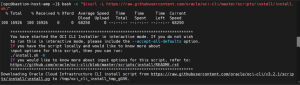
Install the installer script given in the document
bash -c “$(curl -L https://raw.githubusercontent.com/oracle/oci-cli/master/scripts/install/install.sh)”
Accept the defaults and type the above commands in the bastion server not in the ssh –ed server.

Oracle linux 7
–> sudo yum install python36-oci-cli
Oracle linux 9
–> sudo dnf install python39-oci-cli
Ubuntu or other system
–> pip3 install oci-cli
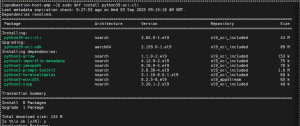

Type oci – – version to confirm the installation

Setup the oci cli with your tenancy details ( tenancy ocid, user ocid, region, etc) [ By clicking the top right user you would be able to see user settings, tenancy details, etc ]
–> oci setup config
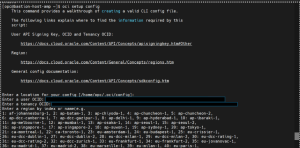
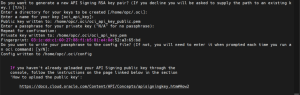
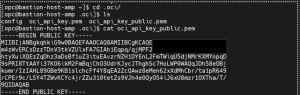
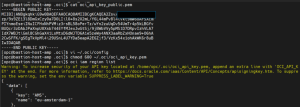
–> cat /home/opc/.oci/ oci_api_key_public.pem.
Copy the public key and follow the below rules.
- Open the Console, and sign in.
- In the navigation menu , select the Profile menu and then select User settings or My profile, depending on the option that you see.
- Select Token and keys.
- Select Add API Key.
- In the Add API Key dialog box, select the Paste a public key radio button.
- Paste the contents of the PEM public key in the dialog box and select Add.
Fingerprint is created.
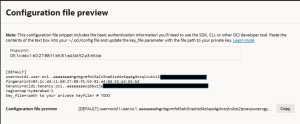
Paste the fingerprint in the ~/.oci/config file.
After this to avoid entering the password every time we can generate a private key and do the steps like add the public key to api settings, paste the fingerprint in the config file like above step.

Conclusion
By implementing OCI CLI, we eliminated manual dependency on the OCI Console, reduced operational effort, avoided human errors, and enabled full automation and scripting capabilities. This approach provides a scalable, reliable, and production-ready solution for managing OCI infrastructure.