Pushing OIC Activity Stream Logs directly to OCI Log Analytics
Introduction:
OCI Log Analytics is a great value add to OIC monitoring, especially in respect of OIC fleet management.
Previously, we needed to send the logs via OCI Logging, and, from there, via a Connector to OCI Log Analytics. Some customer also experienced data truncation, when pushing the activity stream logs bia OCI Logging.
Net, net, the above problem is solved, as you will see, we’ve simplified this completely.
Why we need to do:
we needed to send the logs via OCI Logging, and, from there, via a Connector to OCI Log Analytics. Some customer also experienced data truncation, when pushing the activity stream logs bia OCI Logging.
How do we solve:
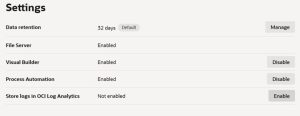
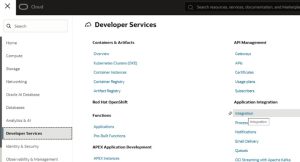
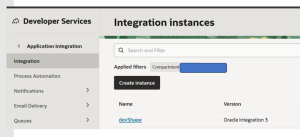
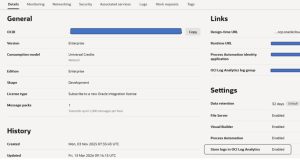
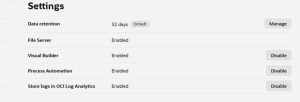
Just go to your service instance page in the OCI console, select your service instance and then check out the Settings section on the Details tab –

We have to ensure we have a log group for OIC logs in OCI Log Analytics –

Click on Administration –
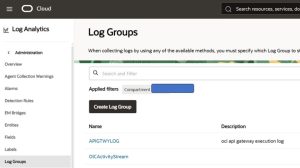
We need to create a policy to allow uploads from OIC.
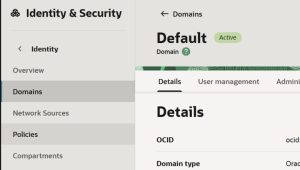
For this we need the OIC client id; this can be retrieved by the Oracle Cloud Services app, auto-created when you provisioned your instance.

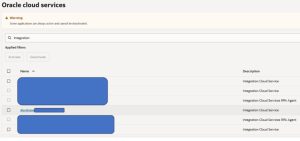
Click on the link –
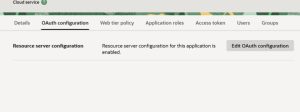
Click OAuth configuration and then scroll down to General Information, here you find the client id –
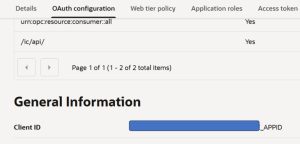
We will add this client id to a dynamic group, which we will now create
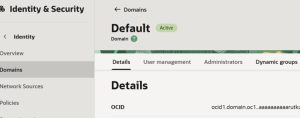
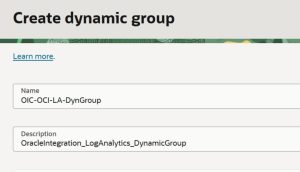
allow dynamic-group DynamicGroup to {LOG_ANALYTICS_LOG_GROUP_UPLOAD_LOGS} in compartment LogGroup_Compartment
allow dynamic-group DynamicGroup to {LOG_ANALYTICS_SOURCE_READ} in tenancy
allow dynamic-group DynamicGroup to use loganalytics-ondemand-upload in tenancy
allow dynamic-group DynamicGroup to {LOG_ANALYTICS_LOG_GROUP_UPLOAD_LOGS} in tenancy
That’s the prep work done, all we need to do now is enable this in the OIC service instance page
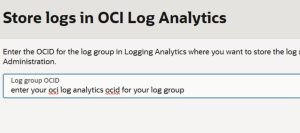
Click enable and enter the ocid of your target OCI Log Analytics log group.
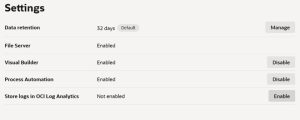

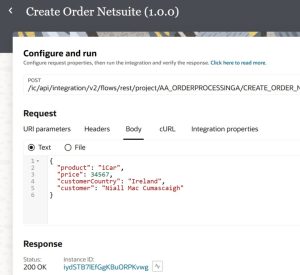
Sanity Test
Here’s the data in OCI Log Analytics Log Explorer –
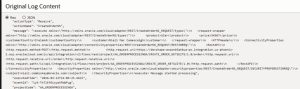
Note, I ran the integration in Debug mode.