Blog / Oracle Application Blog
Implementing Mouse-Centered Screen Zoom Using the Shift Key with JavaScript in Oracle APEX
Introduction
Oracle APEX applications often display large amounts of data in Interactive Reports, Interactive Grids, dashboards, and forms. When users need to inspect small text or closely packed information, increasing the browser zoom affects the entire application and requires users to manually restore the original zoom level afterward.
A better solution is to provide a temporary mouse-centered zoom that activates only while a key is pressed. This approach allows users to quickly magnify any area of the page without changing browser settings or disrupting the application layout.
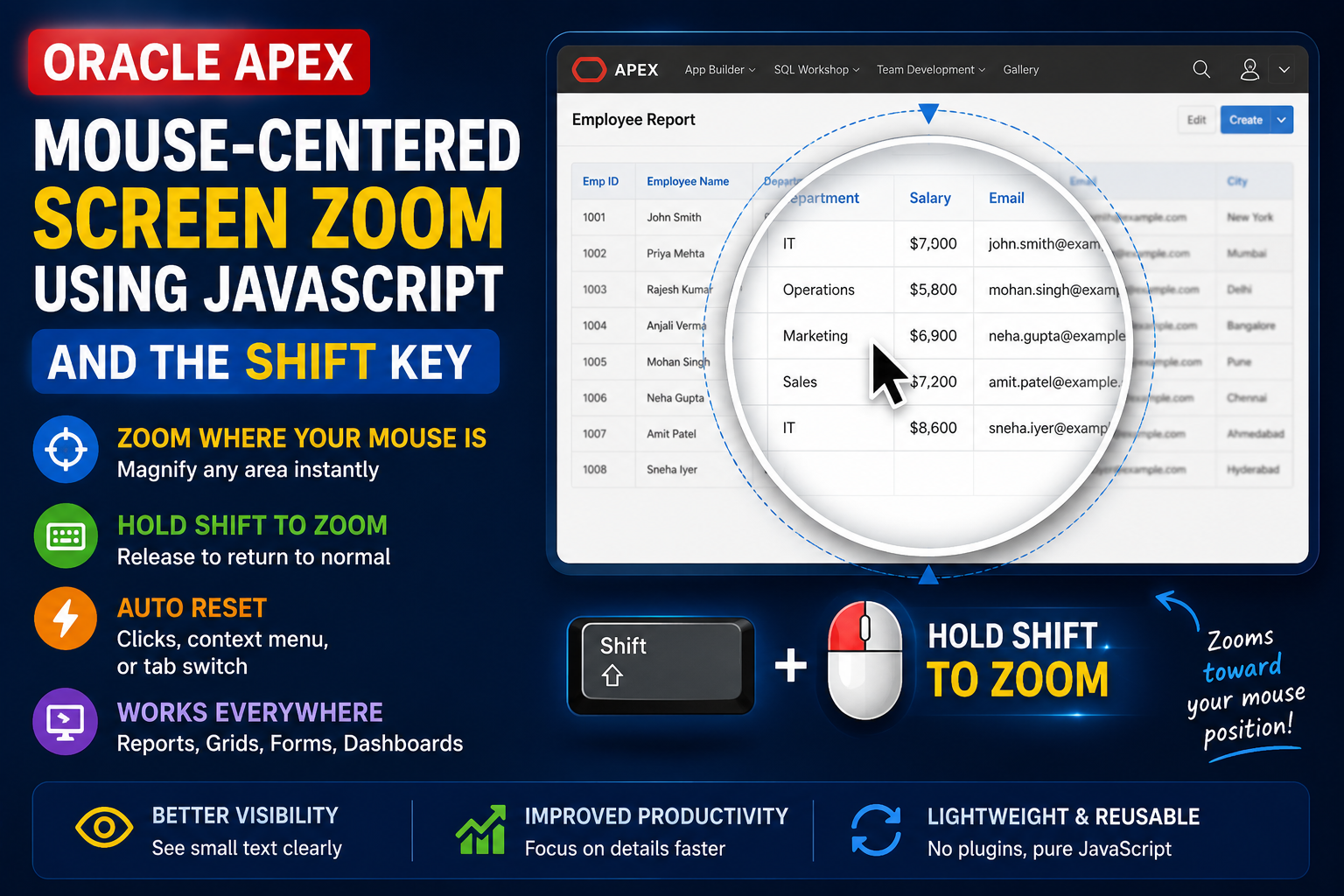
In this article, you’ll learn how to implement a mouse-centered screen zoom in Oracle APEX using JavaScript and the Shift key. The solution is lightweight, reusable, and works across any Oracle APEX page without requiring plugins.
Why Use Mouse-Centered Zoom in Oracle APEX?
Temporary screen zoom provides several advantages for enterprise applications:
- Better Visibility: Easily inspect small text and detailed information.
- Improved User Experience: Zoom into any section without changing browser settings.
- Ideal for Interactive Reports and Grids: Makes reviewing large datasets easier.
- Automatic Reset: The page instantly returns to its normal size when the key is released.
- Preserves Page Layout: Unlike browser zoom, the application layout remains unchanged.
- Reusable Solution: Works on any Oracle APEX page with minimal configuration.
- No Plugins Required: Uses only JavaScript and standard browser features.
How the Solution Works
The solution uses JavaScript to dynamically scale the webpage while tracking the mouse pointer.
Step 1 – Track the Mouse Position
Continuously monitor the cursor position across the page.
Step 2 – Calculate the Zoom Origin
Convert the cursor position into percentage values and set the CSS transform-origin dynamically.
Step 3 – Apply Zoom
When the Shift key is pressed, increase the page scale using CSS transform: scale().
Step 4 – Follow the Cursor
As the mouse moves, update the zoom origin so the magnified area stays centered around the pointer.
Step 5 – Restore Normal View
When the Shift key is released—or if the user clicks elsewhere, opens the context menu, or switches browser tabs—the page automatically returns to its original size.
JavaScript Code
(function () {

    const zoomLevel = 5.15;
    let isZoomed = false;
    let mouseX = 0;
    let mouseY = 0;

    const root = document.documentElement;

    function updateOrigin() {
        const xPercent = (mouseX / window.innerWidth) * 100;
        const yPercent = (mouseY / window.innerHeight) * 100;

        root.style.transformOrigin = `${xPercent}% ${yPercent}%`;
    }

    function applyZoom() {
        if (isZoomed) return;

        updateOrigin();
        root.style.transition = "transform 0.08s ease-out";
        root.style.transform = `scale(${zoomLevel})`;
        isZoomed = true;
    }

    function resetZoom() {
        if (!isZoomed) return;

        root.style.transform = "scale(1)";
        isZoomed = false;
    }

    document.addEventListener("mousemove", function (e) {
        mouseX = e.clientX;
        mouseY = e.clientY;

        if (isZoomed) updateOrigin();
    });

    document.addEventListener("keydown", function (e) {
        if (e.shiftKey) {
            applyZoom();
        }
    });

    document.addEventListener("keyup", function (e) {
        if (!e.shiftKey) {
            resetZoom();
        }
    });

    document.addEventListener("contextmenu", resetZoom);

    document.addEventListener("mousedown", function (e) {
        if (!e.shiftKey) {
            resetZoom();
        }
    });

    window.addEventListener("blur", resetZoom);

})();
Real-Time Scenario
Imagine a quality engineer reviewing an Oracle APEX Interactive Grid containing hundreds of inspection records with many narrow columns.
Instead of changing the browser’s zoom level, the engineer simply presses and holds the Shift key. The page immediately zooms toward the mouse pointer, making the selected area easier to read. As the cursor moves, the zoom follows it, allowing the engineer to inspect different sections without losing focus.
Once the Shift key is released, the page instantly returns to its original scale. This temporary zoom feature improves productivity while preserving the application’s layout and user experience.
Benefits of This Approach
- Works on any Oracle APEX page
- Perfect for Interactive Reports and Interactive Grids
- Mouse-centered zoom provides better precision
- Automatic reset when the Shift key is released
- Lightweight JavaScript implementation
- No browser zoom changes
- No plugins or third-party libraries required
- Easy to customize by changing the zoom level
Result
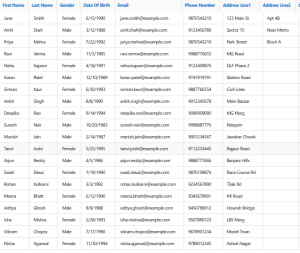
BEFORE:
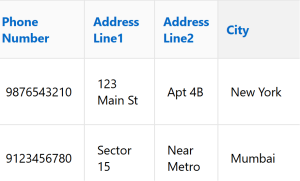
OUTPUT:
Frequently Asked Questions (FAQ)
Does this work only in Oracle APEX? No. The JavaScript works on any HTML page, but it is especially useful in Oracle APEX applications. Can I change the zoom level? Yes. Modify thezoomLevelvariable to increase or decrease the magnification. Why is the zoom centered on the mouse pointer? The script dynamically updates the CSStransform-originbased on the current cursor position, making navigation more intuitive. Does this affect the browser zoom level? No. The solution uses CSS transforms, so the browser's zoom setting remains unchanged. Is this compatible with Interactive Reports and Interactive Grids? Yes. It works seamlessly with Oracle APEX Interactive Reports, Interactive Grids, forms, and dashboards.
Conclusion
Implementing a mouse-centered screen zoom in Oracle APEX using JavaScript is a simple yet powerful way to improve usability in data-intensive applications. Instead of relying on browser zoom, users can temporarily magnify any part of the page by pressing the Shift key, making it easier to inspect reports, Interactive Grids, forms, and dashboards.
Because the zoom automatically resets when the key is released, the application’s layout remains intact while providing a smooth and intuitive user experience. This lightweight, reusable solution is ideal for Oracle APEX developers who want to enhance readability without introducing plugins or modifying existing components.