
Creating a BOM Item
Creating a Bill of Materials (BOM) item in Oracle Apps R12 involves defining the parent assembly and its components within the Bills of Material module, ensuring prerequisites like items being defined with ‘BOM Allowed=Yes’ are met, and then specifying item types (Standard, Model, Planning, etc.) to control functionality, supporting multi-level structures for Assemble-to-Order (ATO) or Pick-to-Order (PTO) configurations
Key Steps for Creating a BOM Item
- Define Items (Prerequisite):
*Ensure the parent assembly and all components are set up as inventory items.
*Set the BOM Allowed attribute to Yes for the assembly and components.
*Define the BOM Item Type (e.g., Standard, Model, Option Class, Planning)
2> Navigate to Bills of Material:
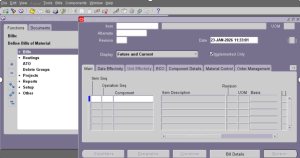
In Oracle Apps, navigate to the Bills of Material responsibility and open the Bills of Material window.
- Create the Bill:
*Enter the Assembly Item and select the organization.
*Specify the BOM Name (if creating an alternate) and Revision.
- Add Components:
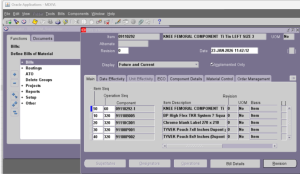
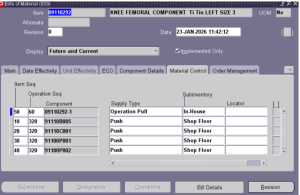
*In the Components section, add each component item, its quantity, UOM, and WIP Supply Type.
Supply Type.
*You can manually enter components or copy them from another bill using the tools menu.
- Define Structure & Types:
*For Model items (ATO/PTO), define Option Classes and optional/mandatory Components.
*Use Substitute Components for alternatives to standard parts.
- Save the Bill:
*Save the record to finalize the BOM for that assembly in the current organization.
