
Prerequisite:
1. MS SQL Server with a SQL Authenticated User.
CREATE LOGIN Sivakumar WITH PASSWORD = 'Doyen@123', CHECK_POLICY = OFF;
SELECT name, type_desc, is_disabled FROM sys.server_principals WHERE name ='Sivakumar'

2. MS SQL Server should allow remote connections.
EXEC sys.sp_configure 'remote access';
To check the remote access,
For Default Instance:

DOYENLTP1518 → Hostname
1433 → Port
Sivakumar → SQL Authenticated User
Doyen@123 → Password for the User.
For Named Instance:

Named Instance → MSSQLSERVER
Connection can be established.
3. Install Microsoft ODBC Driver in Oracle Server.
4. Edit odbc.ini file and test the connectivity in Oracle Server
5. Create initMSSQL.ora file in Oracle Server.
6. Configure tnsnames and listener.ora files.
7. Create Database Link and check the connectivity.
Configuring ODBC Driver:
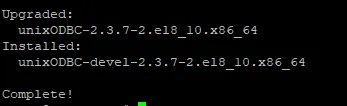
1.Install Driver Manager for ODBC Driver — unixODBC
sudo yum install unixODBC unixODBC-devel -y
2. Install Microsoft ODBC Driver. (Use this Link →https://learn.microsoft.com/en-us/sql/connect/odbc/linux-mac/installing-the-microsoft-odbc-driver-for-sql-server?view=sql-server-ver17&tabs=alpine18-install%2Credhat17-install%2Cdebian8-install%2Credhat7-13-install%2Crhel7-offline#17)
For Linux 8:
curl -sSL -O https://packages.microsoft.com/config/rhel/8/packages-microsoft-prod.rpm

Install the Package:
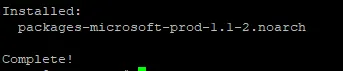
sudo yum install packages-microsoft-prod.rpm
Delete the RPM file:
rm packages-microsoft-prod.rpm
Install the ODBC Driver,Tools and unixODBC-devel Dependency:
sudo ACCEPT_EULA=Y yum install -y msodbcsql17
sudo ACCEPT_EULA=Y yum install -y mssql-tools
sudo yum install -y unixODBC-devel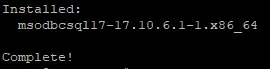
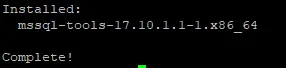
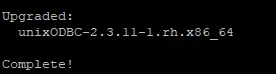
3. Make sure file libmsodbcsql-17.so exist in the location /usr/lib64after packages are installed.

Edit odbc.ini file and Test the connectivity in Oracle Server:
1.Edit the odbc.ini file located under /etc, Fill the MS SQL Server details under the [MSSQL] header.
[MSSQLSERVER] ----------------------> This will be the SID of our SQL Server.
Description = MSSQLSERVER
Driver = /usr/lib64/libmsodbcsql-17.so
Server = DOYENLTP1518   --> Hostname or Server Name
User = Sivakumar  --> SQL Authenticated User
Password = Doyen@123 --> User Password
Port = 1433 --> Server Port
Database = DB100 --> Database Name where the user has permission

2.Check the Connectivity from Oracle to SQL Server.
NOTE: Ensure the Windows Server Firewall allows the inbound connection of TCP 1433.
Check the Server Connectivity,
nc -zv DOYENLTP1518 1433

/opt/mssql-tools/bin/sqlcmd -D -S MSSQLSERVER -U Sivakumar -P Doyen@123

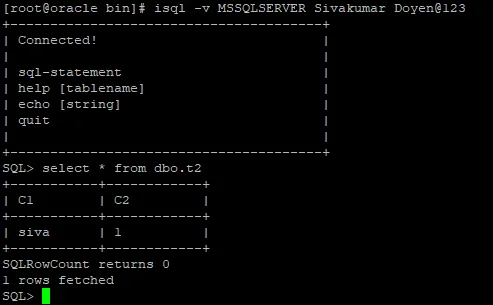
Create initMSSQLSERVER.ora file in Oracle Server:
1.Create file initMSSQLSERVER.ora under directory $ORACLE_HOME/hs/admin.
2.Add the below Parameters,
vi initMSSQLSERVER.ora

# HS init parameters

HS_FDS_CONNECT_INFO = MSSQLSERVER
HS_FDS_TRACE_LEVEL = user
HS_FDS_SHAREABLE_NAME = /usr/lib64/libmsodbcsql-17.so
HS_FDS_TRACE_FILE_NAME=/tmp/ora_hs_trace.log
HS_NLS_NCHAR = UCS2

# ODBC specific environment variables

set ODBCINI=/etc/odbc.ini
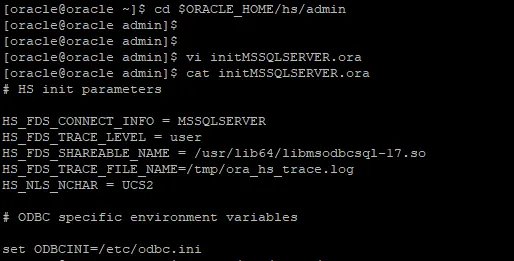
File has been created
Configure tnsname.ora & listener.ora files:
1.Navigate to $ORACLE_HOME/network/admin, and add the below entry in listener.ora
SID_LIST_LISTENER =
  (SID_LIST =
      (SID_DESC =
      (PROGRAM = dg4odbc)
      (SID_NAME = MSSQLSERVER)
      (ORACLE_HOME = /u01/apps/oracle/product/home)
      (ENVS=LD_LIBRARY_PATH=/opt/microsoft/msodbcsql17/lib64)
     )
  )

USE_SID_AS_SERVICE_listener=on
lsnrctl reload
lsnrctl status

2. Now, Add the below entries in tnsnames.ora.
MSSQLSERVER =
  (DESCRIPTION =
    (ADDRESS = (PROTOCOL = TCP)(HOST = 192.168.32.128)(PORT = 1521))
    (CONNECT_DATA =
      (SID = MSSQLSERVER)
    )
    (HS = OK)
  )

Create Database Link and check the connectivity:
1.Connect to the Oracle Database and create Database Link.
create public database link MSSQL_DBLINK connect to mssql_user identified by "mssql_password" using 'MSSQLSERVER';

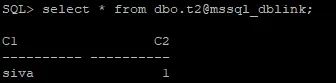
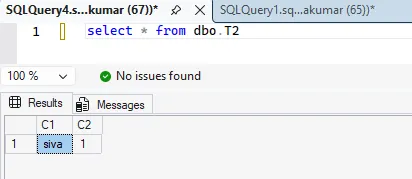
Testing the Database Link:
Oracle:
MS SQL Server:
Inserting a row:
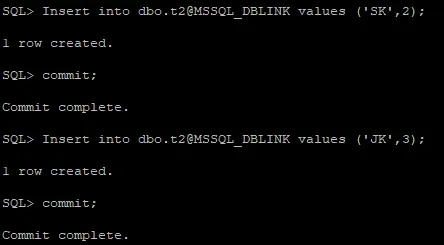
NOTE: Commit should be given for every DML statements or else the command executing based on the table will be in executing state on SQL Server.
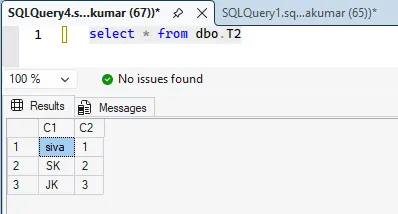
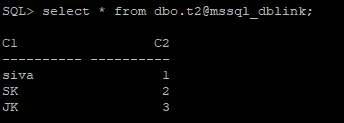

DB_LINK created and MS SQL Server can be connected!
