
Introduction
In Oracle APEX Interactive Grids, users often add a new row while other existing rows are still editable. This can lead to accidental clicks, unintended edits, or triggering Dynamic Actions on existing rows.
The main issue is that there is no default way to lock existing rows while a new row is being added. As a result, data inconsistency and user confusion can occur during data entry.
This blog explains how to disable all existing rows until the newly inserted row is saved or canceled, using a pure JavaScript and CSS solution without touching the backend.
Why we need to do
When a user inserts a new row in an Interactive Grid:
- Existing rows remain editable.
- Users may accidentally click or update old records.
- Dynamic Actions may fire unintentionally.
- Multiple rows can be edited at the same time, causing confusion.
This usually happens in real-time data entry screens where:
- Only one row should be edited at a time.
- Business rules expect the new record to be saved first.
- Data accuracy and user focus are critical.
The impact includes:
- Incorrect data updates.
- Poor user experience.
- Increased chances of validation or save errors.
How do we solve
We solve this by detecting when a new row is inserted in the Interactive Grid :
- Temporarily disabling all existing rows
- Re-enabling them once the new row is saved or canceled
This solution uses:
- JavaScript to track inserted rows
- CSS to visually lock and dim existing rows
- No backend changes required
Steps to Implement
Step 1: Assign a Static ID to the Interactive Grid
Example:
MY_IG
Step 2: Add JavaScript
Add the following code in Function and Global Variable Declaration:
(function($){
“use strict”;
$(function(){
var igSelector = “#MY_IG”; // <– update with your IG Static ID
var delayMs = 50;
$(igSelector).on(“interactivegridviewmodelcreate”, function(event, ui){
if (ui.viewId !== “grid”) return;
var model = ui.model;
function applyRowLocking(){
var $grid = $(igSelector);
var insertedRows = $grid.find(“tr.is-inserted”);
if (insertedRows.length > 0) {
// Disable all non-inserted rows
$grid.find(“tr:not(.is-inserted)”).each(function(){
var $tr = $(this);
if (!$tr.hasClass(“is-disabled”)) {
$tr.addClass(“is-disabled”);
$tr.find(“input,select,textarea”).prop(“disabled”, true);
}
});
} else {
// No inserted rows — re-enable all rows
$grid.find(“tr.is-disabled”).each(function(){
var $tr = $(this);
$tr.removeClass(“is-disabled”);
$tr.find(“input,select,textarea”).prop(“disabled”, false);
});
}
}
// Initial check
setTimeout(applyRowLocking, delayMs);
// Watch for grid changes
model.subscribe({
onChange: function(){
setTimeout(applyRowLocking, delayMs);
}
});
// Also run after refresh
$(document).on(“apexafterrefresh”, igSelector, function(){
setTimeout(applyRowLocking, delayMs);
});
});
});
})(apex.jQuery);
Step 3: Add CSS
Add this CSS inline:
/* Make all disabled rows look dimmed and non-interactive */
#MY_IG tr.is-disabled td {
background: #ffaaaa;
opacity: 0.6;
pointer-events: none;
}
#MY_IG tr.is-disabled input,
#MY_IG tr.is-disabled select,
#MY_IG tr.is-disabled textarea {
pointer-events: none;
opacity: 0.5;
}
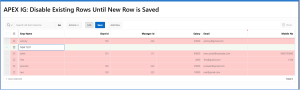
Result:
Conclusion
Using this approach, we successfully:
- Locked all existing rows when a new row is inserted
- Prevented accidental edits and unwanted Dynamic Action triggers
- Improved user focus and data accuracy
- Delivered a clean, backend-free solution using JavaScript and CSS only
This solution is lightweight, reusable, and easy to maintain, making it ideal for real-time data entry scenarios in Oracle APEX Interactive Grids.
