
Introduction:
Oracle APEX Interactive Grids are one of the most powerful components for displaying and managing large volumes of data within an application. They allow users to view, edit, filter, and analyze information efficiently on a single screen. However, as the number of columns and rows increases, users may find it difficult to quickly identify important fields or understand where their attention should be focused. A visually uniform grid can sometimes make critical data blend into the background, reducing usability and increasing the chances of user oversight. Dynamically highlighting specific columns in an Interactive Grid helps overcome this challenge by providing clear visual cues that guide users through the data. By applying dynamic styling based on business logic, application state, or user interaction, developers can make grids more intuitive, visually appealing, and easier to work with, especially in data-intensive enterprise applications.
The following technologies have been used in custom button driven data refresh
- Oracle APEX
- Javascript
Why we need to do: –
In real-world applications, not all data displayed in an Interactive Grid holds the same level of importance at all times. Certain columns may require user attention due to business rules, validation requirements, or changing conditions such as edit mode, status values, or calculated results. Without visual differentiation, users are forced to scan the entire grid manually, which can slow down workflows and increase the likelihood of errors. Dynamically highlighting columns helps bridge this gap by clearly signaling which fields are significant, editable, or require action. This approach enhances user experience by reducing cognitive load and making interactions more natural and efficient. From a development perspective, dynamic highlighting also allows applications to adapt visually to changing data and user behavior without redesigning the grid structure, resulting in cleaner interfaces and more responsive, user-friendly APEX applications.
How do we solve:
The following steps explain how to create an Interactive Grid and dynamically highlight specific column
Step 1 : Create an Interactive Grid and assign a Static ID to it.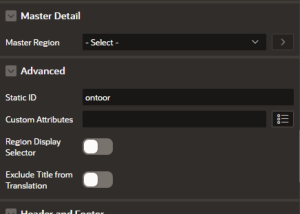
Step 2:Create a Button Save. Change it to Defined by Dynamic Action.
Step 3: On Click of the Save Button In Dynamic Action Choose Execute Javascript Code
paste the given javascript code below.
Code
var idList = $v(“P3_GET_LINE_ID”);
if (!idList) {
apex.message.clearErrors();
apex.message.showErrors([{
type: “error”,
location: “page”,
message: “Kindly select at least one row before proceeding.”,
unsafe: false
}]);
setTimeout(function() { apex.message.clearErrors(); }, 4000);
return;
}
var ids = idList.split(“,”).map(x => x.trim());
var grid = apex.region(“ontoor”).widget().interactiveGrid(“getViews”, “grid”);
var model = grid.model;
var so_qty = [], so_qty_pcs = [], so_qty_mtr = [],
onhand = [], disp_pcs = [], disp_mtr = [], disp_ton = [], length_rng = [];
var isValid = true;
var errorMsg = “”;
model.forEach(function(rec) {
var lineId = String(model.getValue(rec, “LINE_ID”));
if (ids.includes(lineId)) {
var pcs = model.getValue(rec, “DISP_QTY_PCS”);
var mtr = model.getValue(rec, “DISP_QTY_MTR”);
var ton = model.getValue(rec, “DISP_QTY_TON”);
so_qty.push(model.getValue(rec, “SO_QUANTITY”));
so_qty_pcs.push(model.getValue(rec, “SO_QTY_PCS”));
so_qty_mtr.push(model.getValue(rec, “SO_QTY_MTR”));
onhand.push(model.getValue(rec, “SO_ONHAND_QTY”));
disp_pcs.push(pcs);
disp_mtr.push(mtr);
disp_ton.push(ton);
length_rng.push(model.getValue(rec, “SO_LENGTH_RANGE”));
var rowId = model.getRecordId(rec);
var rowSelector = “tr[data-id='” + rowId + “‘]”;
$(rowSelector).find(“td:nth-child(11), td:nth-child(12), td:nth-child(13)”).removeClass(“highlight-cell”);
if ((pcs == null || pcs === “”) && (mtr == null || mtr === “”) && (ton == null || ton === “”)) {
isValid = false;
errorMsg += `UOM(PCS), UOM(MTR) and UOM(TON) fields cannot be empty.\n`;
$(rowSelector).find(“td:nth-child(11), td:nth-child(12), td:nth-child(13)”).addClass(“highlight-cell”);
}
else if ((pcs == null || pcs === “”) && (mtr == null || mtr === “”)) {
isValid = false;
errorMsg += `UOM(PCS) and UOM(MTR) fields cannot be empty.\n`;
$(rowSelector).find(“td:nth-child(11), td:nth-child(12)”).addClass(“highlight-cell”);
}
else if ((pcs == null || pcs === “”) && (ton == null || ton === “”)) {
isValid = false;
errorMsg += `UOM(PCS) and UOM(TON) fields cannot be empty.\n`;
$(rowSelector).find(“td:nth-child(11), td:nth-child(13)”).addClass(“highlight-cell”);
}
else if ((mtr == null || mtr === “”) && (ton == null || ton === “”)) {
isValid = false;
errorMsg += `UOM(MTR) and UOM(TON) fields cannot be empty.\n`;
$(rowSelector).find(“td:nth-child(12), td:nth-child(13)”).addClass(“highlight-cell”);
}
else if (pcs == null || pcs === “”) {
isValid = false;
errorMsg += `UOM(PCS) field cannot be empty.\n`;
$(rowSelector).find(“td:nth-child(11)”).addClass(“highlight-cell”);
}
else if (mtr == null || mtr === “”) {
isValid = false;
errorMsg += `UOM(MTR) field cannot be empty.\n`;
$(rowSelector).find(“td:nth-child(12)”).addClass(“highlight-cell”);
}
else if (ton == null || ton === “”) {
isValid = false;
errorMsg += `UOM(TON) field cannot be empty.\n`;
$(rowSelector).find(“td:nth-child(13)”).addClass(“highlight-cell”);
}
if ((pcs && isNaN(pcs))) {
isValid = false;
errorMsg += `UOM(PCS) must contain only numbers.\n`;
$(rowSelector).find(“td:nth-child(11)”).addClass(“highlight-cell”);
}
if ((mtr && isNaN(mtr))) {
isValid = false;
errorMsg += `UOM(MTR) must contain only numbers.\n`;
$(rowSelector).find(“td:nth-child(12)”).addClass(“highlight-cell”);
}
if ((ton && isNaN(ton))) {
isValid = false;
errorMsg += `UOM(TON) must contain only numbers.\n`;
$(rowSelector).find(“td:nth-child(13)”).addClass(“highlight-cell”);
}
}
});
if (!isValid) {
apex.message.clearErrors();
apex.message.showErrors([{
type: “error”,
location: “page”,
message: errorMsg,
unsafe: true
}]);
setTimeout(function() { apex.message.clearErrors(); }, 5000);
return;
}
get_value(ids, so_qty, so_qty_pcs, so_qty_mtr, onhand, disp_pcs, disp_mtr, disp_ton, length_rng);
Modify the JavaScript code according to your requirements.
Conclusion:
Dynamically highlighting columns in an Oracle APEX Interactive Grid is a simple yet powerful technique to improve data clarity and user interaction. By applying conditional styling through JavaScript or CSS, developers can make important columns stand out, reduce user confusion, and create a more intuitive application experience. This approach not only enhances usability but also adds a professional touch to your APEX applications.

