
The Business Problem
Most Power Automate infra automations quietly assume a Windows/M365 world — mailbox triggers, SharePoint lists, Graph calls. The moment your estate includes Linux servers (DB hosts, app servers, backup targets), that automation stack goes dark. There’s no native “Linux” connector, so teams fall back to one of two bad patterns:
- Manual checking. Someone SSH’s in every morning to check disk space, confirm last night’s backup job actually exited 0, and see if a cron/systemd job silently failed. This doesn’t scale past a handful of boxes and always misses something over a weekend.
- A second, disconnected toolchain. Nagios, Zabbix, or a custom monitoring stack that works fine for Linux but lives in its own silo — alerts don’t land in the same ticketing system or Teams channels as the rest of the org’s automation, so on-call staff are watching two different worlds.
The real problem isn’t “we need Linux monitoring” — most environments already have some form of that. The problem is Linux infrastructure events aren’t part of the same automated ticket-and-notify pipeline as everything else, and there’s no safe, low-effort way to let routine issues (disk filling up, a stuck service, a failed backup) fix themselves without a human SSHing in for a two-line command.
The Solution
A lightweight bridge that lets Linux hosts report structured events directly into Power Automate, which then classifies severity, creates a ticket, alerts the right team in Teams, and — for a defined set of known-safe issues — triggers automated remediation back on the box, with a human approval gate for anything higher-risk.
| Problem | Solution Component |
| Manual daily checking doesn’t scale | Linux hosts self-report via a lightweight scheduled check, no human polling required |
| Alerts live in a separate Linux-only toolchain | Events flow into the same Power Automate → ticketing → Teams pipeline as the rest of the org |
| Routine fixes still require someone to SSH in | Defined auto-remediation actions run automatically for known-safe cases |
| Risk of an automation “doing something bad” unattended | Higher-risk actions require explicit Teams approval before executing |
Solution Architecture
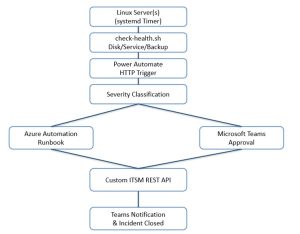
Prerequisites
Before building this out, have the following in place:
Licensing & Platform Access
- Power Automate Premium license (or per-flow plan) — the HTTP trigger, HTTP action, and Azure Automation connector are premium connectors, not included in the free/seeded tier.
- Azure subscription with rights to create: an Automation Account, a Key Vault, and (optionally) an Azure Function if you offload HMAC verification there.
- Microsoft Teams with permission to post Adaptive Cards to the relevant channel (via the Teams connector or an incoming webhook).
Azure Automation Setup
- Azure Automation Account created and linked to the target environment.
- Hybrid Runbook Worker installed on a Linux jump host (or per-host for larger estates) — this is the actual bridge that lets a cloud-triggered runbook execute SSH commands against production Linux boxes.
- Runbook(s) authored and tested for each remediation action (e.g., Clear-TempAndLogs, Retry-BackupJob) — Python or PowerShell 7 (cross-platform), whichever your team is more comfortable maintaining.
Linux-Side Setup
- Root/sudo access on target hosts to install the systemd timer + check-health.sh script.
- A dedicated service account (e.g., svc-automation) for SSH-based remediation, with a narrowly scoped sudoers entry — not blanket NOPASSWD: ALL.
- openssl and curl available on the hosts (present by default on almost all distros) for HMAC signing and the HTTPS POST.
- Outbound HTTPS access from Linux hosts to the Power Automate endpoint (firewall/proxy rule if hosts are network-restricted).
Security Prerequisites
- A shared HMAC secret, generated and distributed to hosts via your config management tool (Ansible/Puppet/Chef) — not manually copy-pasted.
- Azure Key Vault to store: the HMAC key (server side, for verification) and the custom ITSM tool’s API credentials.
- A rotation policy for both the HMAC key and the ITSM API token.
ITSM Integration
- API access to the custom ITSM tool — an API key or OAuth client credentials with permission to create incidents programmatically, and confirmation the API supports the fields you need (priority, team, category, custom “source” tagging).
- Routing table (SharePoint list or Dataverse) pre-populated with category → team → runbook mappings before go-live.
People / Access
- Someone with Power Automate maker permissions to build and own the flow.
- Azure Automation / Hybrid Worker admin access for whoever sets up the remediation bridge.
Linux/infra team sign-off on exactly which remediation actions are safe to run unattended vs. which require the approval gate.
How It Works, Step by Step
- Give Linux a voice: a lightweight self-reporting check
No agent installation, no heavy monitoring stack — a small script run by a systemd timer (cleaner and more observable than raw cron) reports structured JSON.
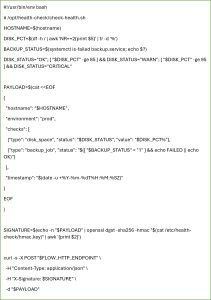
Solving the security gap that direct HTTP-to-Power-Automate setups usually skip: the flow’s HTTP trigger URL is effectively a bearer secret — if it leaks, anyone can post fake incidents. The HMAC signature (shared key stored in a root-only file, rotated periodically via your config management tool) lets the flow verify authenticity before acting on anything, without needing a full Azure AD app registration on every Linux box.
- Receive and classify in Power Automate
Trigger: “When an HTTP request is received,” with a defined JSON schema matching the payload above.
First action: verify the X-Signature header against the same HMAC key (stored in Key Vault) using a Compose + expression check, or a small Azure Function if you want the crypto logic somewhere more testable than a flow expression. Reject (401) anything that doesn’t match — this is what makes it safe to expose the endpoint at all.
Then branch on severity, using the same maintainable routing table pattern as any solid Power Automate design — a SharePoint list mapping checkType + environment to owning team, auto-remediation eligibility, and escalation contact:
| CheckType | Environment | AutoRemediate | AssignedTeam | RunbookName |
| disk_space (WARN) | prod | Yes | Linux Infra | Clear-TempAndLogs |
| disk_space (CRITICAL) | prod | No (needs approval) | Linux Infra | Clear-TempAndLogs |
| backup_job (FAILED) | prod | No (needs approval) | DB/Backup Team | Retry-BackupJob |
| any | non-prod | Yes | Linux Infra | (same runbooks) |
- Auto-remediate the known-safe cases
For anything flagged AutoRemediate = Yes, the flow calls an Azure Automation Runbook running on a Hybrid Runbook Worker — this is the practical bridge that lets Power Automate reach into Linux without Power Automate needing to “speak SSH” itself. The Hybrid Worker (a lightweight agent installed on one designated Linux jump host, or on each host for larger estates) executes the runbook locally or via SSH to the target.

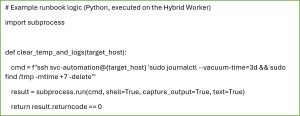
The SSH identity used here (svc-automation) should be a dedicated, least-privilege service account with a narrowly scoped sudoers entry limited to exactly the remediation commands it needs — not a blanket sudo grant. That scoping is what makes “auto-remediation” something an ops lead will actually sign off on.
- Gate higher-risk actions behind human approval
For anything not flagged as auto-remediate-eligible (critical disk, failed backup job — anything where a wrong automated action could make things worse), the flow posts an Adaptive Card to the owning team’s Teams channel instead of running immediately:

Approval triggers the same Automation Runbook path as step 3; dismissal skips straight to ticket creation. This preserves the speed benefit of automation for the 80% of cases that are genuinely safe, while keeping a human in the loop for the 20% that actually need judgment — which is the same design principle a solution-driven email-to-incident build uses, applied to infrastructure instead of inbox traffic.
- Create the incident and close the loop
Same pattern as any solution-driven ticketing flow: POST to the custom ITSM tool’s REST API with the check details, severity, and (if remediation ran) the outcome.
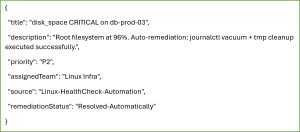
If remediation succeeded, the ticket can be created pre-resolved with the action logged — the team sees what happened and why, without needing to act on it. If remediation wasn’t attempted or failed, it’s created open and routed normally.
Outcomes This Solution Delivers
| Metric | Before | After |
| Time to detect a Linux issue | Hours (manual daily check) or missed over weekends | Minutes (systemd timer interval) |
| Time to resolve known-safe issues (disk cleanup, etc.) | Requires a human to SSH in | Auto-resolved, ticket created after the fact |
| Visibility | Siloed in a separate Linux monitoring tool | Same Teams channels + ITSM tool as the rest of the org |
| Risk of bad automated action | N/A (nothing automated) | Bounded — only pre-approved, least-privilege actions run unattended; anything else requires explicit approval |
What to Validate Before Rolling This Out
- Least-privilege SSH scoping. The svc-automation account’s sudoers entry should be an explicit allowlist of commands, never a blanket NOPASSWD: ALL.
- HMAC key rotation. Treat the shared secret like any credential — rotate it on a schedule via your config management tool (Ansible/Puppet/Chef), not manually per host.
- Hybrid Worker placement and patching. It’s a privileged component with SSH access into production — patch and monitor it like any other jump host, not as an afterthought.
- Runbook scope creep. Keep the auto-remediation runbook library small and reviewed — the moment “safe cleanup actions” starts including anything that touches application state or data, that action belongs behind the approval gate, not in the automatic path.
Closing Thoughts
Linux infrastructure usually gets left out of the shiny Power Automate story because there’s no native connector for it — but the actual gap isn’t monitoring, it’s that Linux events never join the same ticketing-and-notification pipeline the rest of the org already trusts. A signed HTTP payload, a routing table, a Hybrid Worker as the SSH bridge, and an approval gate for anything risky is enough to close that gap — without standing up a second monitoring stack or accepting “SSH in and check manually” as a permanent process.
