
Resolving Long-Running Apply Receipts Using AutoMatch ESS Process in Oracle Fusion
Introduction / Issue
The Apply Receipts Using AutoMatch ESS process in Oracle Fusion Receivables that was seeded was seen to take a long time to finish in some cases more, than two days. It ended with a Warning status.
From looking at the execution log of the master request there were some child worker requests that finished successfully and several child worker processes that finished with warnings.
The worker processes showed an error ORA-01555: snapshot old while they were processing ar_automatch_pkg.insert_invoice_recos
The task was to check if the issue was caused by the AutoMatch configuration or the AutoMatch logic or a mix of both and create a controlled way to handle the workloads
Why we need to do / Cause of the issue
The analysis of successful and warning child processes demonstrated that the AutoMatch setup and logic were correct. The fact that several workers executed successfully and only some failed with ORA-01555 suggests that the issue was caused by specific technical/database reasons that occurred during the processing of a large workload, not by some incorrect logic in the AutoMatch definition.
Processing a huge amount of data in one go may have caused a long-running transaction to read data that was committed long ago, which leads to the ORA-01555 error. Therefore, we decided to process the backlog in stages, controlling the size of the transaction so that it would be committed before it grew too large or ran too long.
How do we solve
- Cancel the scheduled process
We need to stop the Apply Receipts Using AutoMatch process that is set to run from the scheduler account. This is so that the scheduled runs do not happen at the time as the manual runs that we control.
- Temporarily reduce Days to Auto Apply
Go to Manage AR System Options and change the Days to Auto Apply from 10 days to 5 days for now. This makes the first run easier to handle because it has data to process.
When the 5-day run is done and it works fine we can increase the Days to Auto Apply a little at a time. We will change it to 10 days then 15 days, 20 days, then 25 days and finally back, to 30 days.
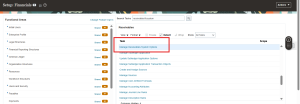
Figure 1: Manage Receivables System Options
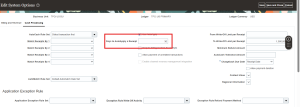
Figure 2: Manage Receivables System Options – Days to Auto Apply Configuration
- Update the AutoMatch Rule Set
Navigate to Manage AutoMatch Rule Set and temporarily set Customer Recommendation Threshold to 100% and Minimum Match Threshold to 100%.
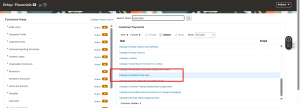
Figure 3: Manage AutoMatch Rule Set
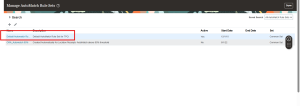
Figure 4: Apply Receipts Using AutoMatch – Choose Active One
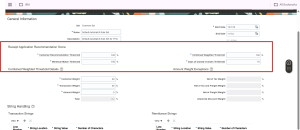
Figure 5: Maximum and Minimum Match Threshold Configuration
- Increase the processing window gradually
After the initial run completes, increase Days to Auto Apply progressively to 10, 15, 20, 25, 30, and further as required. After each change, manually run Apply Receipts Using AutoMatch with Exact Match = Yes.
- Validate each execution
For each run, review the master and child statuses, execution duration, recurrence of ORA-01555, and whether the pending workload is reducing. After the backlog has been processed, restore the configuration and scheduling values appropriate for normal business operations
| Setting / Parameter | Controlled Value |
| Days to Auto Apply | 5 initially, then 10, 15, 20, 25, 30, etc. |
| Customer Recommendation Threshold | 100% |
| Minimum Match Threshold | 100% |
| Exact Match | Yes |
| Number of Instances | 10 |
Conclusion
The persistent Apply Receipts Using AutoMatch problem was solved by handling the backlog in manageable portions. In this instance, the number of Days to Auto Apply was decreased temporarily, and better matching thresholds were applied leading to a gradual increase in the processing window using manual AutoMatch runs. Doing so ensured that the backlog was processed in multiple runs and avoided the complications that arise when a backlog is attempted in one shot.
