
SQL Server Always On: Diagnosing Secondary Replica Connectivity Issues
Introduction
High Availability is one of the most critical aspects of a SQL Server environment. While Always On Availability Groups are designed to provide redundancy and minimize downtime, they still require continuous monitoring because replica communication issues can occur unexpectedly.
During one of my routine health checks, I noticed that a secondary replica had unexpectedly transitioned from a healthy synchronized state to DISCONNECTED. The primary replica continued serving workloads without interruption, so there was no immediate impact on application availability. However, the disconnected secondary meant that recent transactions were no longer being synchronized, reducing the environment’s fault tolerance until the issue was resolved.
Rather than restarting services immediately, I wanted to understand why the replica had disconnected. This blog walks through the investigation process, the diagnostic queries I used, the observations made at each stage, and the steps that restored synchronization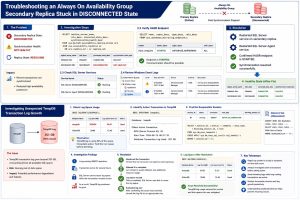
Understanding the Symptoms
Before making any changes, it’s important to understand what SQL Server is reporting.
In SQL Server Management Studio, the Availability Group dashboard showed:
- Secondary Replica State: DISCONNECTED
- Synchronization Health: NOT_HEALTHY
- Replica State: RESOLVING
Although these indicators clearly showed something was wrong, they didn’t identify the underlying cause. Replica disconnections can occur due to service interruptions, endpoint issues, authentication failures, network connectivity problems, or operating system events.
The investigation therefore started with validating the health of the Availability Group itself.
Step 1 – Verify Replica Connectivity
The first step was to confirm whether the issue affected the entire Availability Group or only a specific replica.

Why this query?
This DMV immediately answers several important questions:
- Which replica is disconnected?
- Which replica is currently Primary?
- Is the problem affecting one replica or the entire Availability Group?
- What synchronization health is SQL Server reporting?
In my case, the output confirmed that the primary replica remained healthy while only the secondary replica had lost connectivity.
That narrowed the investigation considerably.
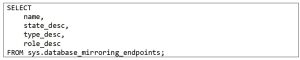
Step 2 – Verify the Database Mirroring Endpoint
Always On Availability Groups rely on the Database Mirroring endpoint for communication between replicas. If the endpoint is stopped or unavailable, synchronization cannot occur.
I verified its status using:
What I was looking for
Ideally the endpoint should report:
STARTED
If the endpoint is stopped, synchronization between replicas will fail regardless of the health of SQL Server services.
Fortunately, the endpoint was already in a STARTED state, allowing me to eliminate endpoint configuration as the root cause.
Step 3 – Verify SQL Server Services
Since the endpoint appeared healthy, the next logical step was to verify the SQL Server services running on the secondary replica.
Specifically, I checked:
- SQL Server Service
- SQL Server Agent Service
Both services were running normally.
At this point, there were no obvious configuration issues.
Step 4 – Review SQL Server Error Logs
When DMVs don’t immediately reveal the cause, the SQL Server Error Log is often the next best source of information.
I reviewed the logs around the time the replica became disconnected and looked for events related to:
- Availability Groups
- HADR
- Endpoint communication
- Login failures
- Replica connectivity
- Failover attempts
Although there wasn’t a single error that directly explained the disconnection, the logs helped eliminate several possible causes and establish an accurate timeline of events.
Step 5 – Correlate with Windows Event Logs
One lesson I’ve learned is that SQL Server rarely operates in isolation.
Many Availability Group issues originate outside SQL Server itself.
To verify whether any operating system events coincided with the replica disconnection, I reviewed the Windows Event Logs, focusing on:
- Service Control Manager events
- Unexpected service restarts
- Operating system updates
- Server reboots
- Network-related events
Reviewing the Windows logs alongside the SQL Server Error Log helped build a much clearer picture of the incident and ruled out several environmental factors.
Step 6 – Validate Database Synchronization
Once I had verified that the environment itself was healthy, I restarted the SQL Server services on the affected secondary replica in a controlled manner.
After the services came online, the replica automatically re-established communication with the primary.
Rather than assuming everything was fixed, I validated the synchronization state of every database.

Expected Result
Every database should report:
SYNCHRONIZED
HEALTHY
This final validation confirmed that synchronization had resumed successfully and that the Availability Group had returned to a healthy state.
Challenges During the Investigation
One aspect that made this incident interesting was the lack of an obvious root cause.
- The SQL Server services were running.
- The HADR endpoint was healthy.
- The Availability Group configuration hadn’t changed.
- There were no clear authentication failures.
- No immediate indication of a network issue.
Without a structured approach, it would have been easy to restart services repeatedly or begin changing configurations unnecessarily.
Instead, working through each layer systematically helped eliminate possibilities one by one before applying the final corrective action.
Lessons Learned
Every production incident reinforces a few good habits.
For me, this investigation highlighted the following:
- Start with observation before taking corrective action.
- Use DMVs to understand the current health of the Availability Group.
- Verify HADR endpoints before investigating networking.
- Correlate SQL Server Error Logs with Windows Event Logs.
- Validate synchronization after recovery instead of assuming the issue is resolved.
- Avoid making configuration changes until you’ve ruled out simpler causes.
Useful SQL Queries for Always On Troubleshooting
Replica Health

Database Synchronization

Endpoint Status

Availability Group State

Conclusion
Troubleshooting Always On Availability Groups isn’t about memorizing fixes—it’s about understanding how each component contributes to replica communication.
In this incident, a structured investigation made it possible to narrow down the problem without making unnecessary configuration changes. By validating replica health, confirming endpoint availability, reviewing SQL Server and Windows logs, and verifying synchronization after recovery, the secondary replica was restored to a healthy synchronized state.
Incidents like this reinforce why a methodical troubleshooting approach is one of the most valuable skills a SQL Server DBA can develop.
