Introduction / Issue
Users working in an editable Oracle APEX Interactive Grid have to reach for the mouse for routine actions such as adding a row, deleting a row, saving changes, or refreshing the grid. Frequent Excel users expect these actions to be available as keyboard shortcuts. The requirement was to add Excel-style shortcuts — Alt+A, Alt+D, Alt+S and Alt+R — to an Interactive Grid without any plugin.
Why We Need to Do / Cause of the Issue
Interactive Grid actions such as row-add-row, row-delete, and save exist in APEX’s internal actions registry, but they are not exposed as keyboard shortcuts by default. These actions are only registered at all when the grid is in editable mode; calling actions.lookup() on a read-only grid returns null and throws an error.
Even with the grid editable, two smaller issues get in the way of an Excel-like feel: without cursor focus set on page load, the user must click inside the grid before any shortcut responds, and setting an action’s shortcut property alone has no effect — APEX only binds the keyboard listener once actions.update() is explicitly called for that action.
How Do We Solve
The solution uses APEX’s own actions registry rather than any plugin — looking up each built-in action and assigning it a shortcut, then calling update() so APEX binds the listener. The steps below outline the full setup.
Step 1: Make the Interactive Grid editable. In the region’s attributes, set Edit → Enabled to Yes, since row-add-row, row-delete, and save are only registered when the grid is editable.
Step 2: Give the IG region a Static ID (for example emp_grid) under Properties → Advanced → Static ID. Not strictly required for the shortcuts themselves, but useful for any other JavaScript or Dynamic Actions referencing the grid.
Step 3: Set cursor focus to the grid on page load. On the page node, set Navigation → Cursor Focus to First item on page, so the grid is ready to receive keyboard input immediately without requiring a click first.
Step 4: Add the JavaScript Initialization Code on the IG region (Attributes → Advanced → JavaScript Initialization Code). A small setShortcut helper looks up each action by name, assigns the Alt-key combination, and calls actions.update() to register it — this update call is mandatory, or the shortcut never fires.
JavaScript — IG Initialization Code
function( options ) {

  options.defaultGridViewOptions = {

    skipReadonlyCells: true

  };

  options.initActions = function( actions ) {

  function setShortcut( names, shortcut ) {

      var names = Array.isArray(names) ? names : [names];

      for (var i = 0; i < names.length; i++) {

        var act = actions.lookup( names[i] );

        if ( act ) {

          act.shortcut = shortcut;

          actions.update( names[i] );

          break;

        }

      }

    }

  setShortcut( ["row-add-row", "selection-add-row"], "Alt+A" );

   setShortcut( ["row-delete", "selection-delete"], "Alt+D" );

   setShortcut( ["save"], "Alt+S" );

   setShortcut( ["refresh"], "Alt+R" );

  };

   return options;
}
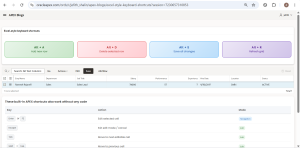
Step 5: Test the shortcuts by running the page and pressing Alt+A, Alt+D, Alt+S, and Alt+R inside the grid. Press Alt+Shift+F1 to open APEX’s built-in shortcut viewer and confirm all four custom shortcuts are registered alongside the standard ones.
Conclusion
Using APEX’s built-in actions registry instead of a custom plugin keeps the solution lightweight — four short setup steps and one block of initialization JavaScript are enough to bring Excel-style keyboard shortcuts to any editable Interactive Grid. Making the grid editable, setting a Static ID, focusing the cursor on load, and explicitly calling actions.update() together make the grid feel native and keyboard-friendly, exactly as Excel users expect.
Output: