
Introduction / Issue
Anyone who has supported a Human-in-the-Loop (HITL) validation workflow knows the friction: an AI model extracts invoice data, a human validator must confirm every field against the source of truth, and that source of truth lives inside SharePoint — scattered across multiple lists, behind authentication gates, and never designed for rapid side-by-side comparison.
Note: The screenshots used throughout this blog contain fake, illustrative data created for demonstration purposes only.
In our client’s environment, the HITL team validates AI-extracted invoice details against four critical SharePoint lists — Vendors, Accounts, Vendors Sites All, and GL Codes. Before any automation, a validator would open SharePoint, search for a vendor name, open the vendor record, cross-reference the site and account details, mentally map the fields against the AI extraction, and then mark the invoice as “Ready to Process” or “Requires Review.” On average, this took three to four minutes per invoice. With hundreds of invoices flowing through the pipeline daily, that friction compounds into hours of lost productivity.
Worse, the team was relying on a collection of disparate Playwright scripts — one for single-vendor lookup, another for bulk vendor list processing, and yet another for submitting validated records based on their final status. Each script was a command-line utility with no unified interface, no visual feedback, and no evidence of trail. The process was not just slow; it was fragile.
And then there was a legal risk. Direct web scraping of SharePoint without proper orchestration can violate terms of service, trigger security audits, and create liability for the client. We needed a solution that automated the browser responsibly, captured evidence, and wrapped everything into a single, auditable desktop application that the HITL team could see and interact with.
This blog covers the solution we built: HITL Assistor, a desktop HITL assistance tool that turns scattered Playwright scripts into a unified validation cockpit — and, as this blog will also cover, now takes over the final, most repetitive step of the job: submitting approved invoices into the HITL portal itself.
Why We Need to Do This / Cause of the Issue
SharePoint is an excellent document and list repository, but it is not a validation of workstation. When the HITL team uses it as one, the following problems emerge:
- Context Switching Overhead: Validators must jump between the AI extraction portal, SharePoint lists, and their own notes. Every vendor’s lookup means typing a search term, waiting for results, opening the right list, and scrolling through columns. The cognitive load is high, and the error rate grows with fatigue.
- No Evidence Trail: When a validator approves an invoice, there is no screenshot or snapshot proving what the SharePoint data looked like at that exact moment. If a dispute arises later, the team has no artifact to defend the decision.
- Script Fragmentation: The existing automation was split across multiple Python Playwright scripts — single vendor search, bulk vendor upload, and status-based batch submission. Each required different inputs, different environments, and different manual steps. There was no shared state, no central UI, and no error handling that a non-engineer could navigate.
- Legal and Compliance Risk: Uncontrolled web scraping against SharePoint can trigger rate limiting, bot detection, and potential contractual violations. Without a controlled, debug-enabled browser session and explicit user login, the automation exists in a gray area that makes security teams nervous.
- Manual Portal Submission: Even after a validator finished comparing every field, the invoice still was not done. Someone had to log into the HITL testing portal and click Submit on each approved record individually — one at a time, with no batching, no automation, and no easy way to track which submissions still needed attention.
- Time Compounding at Scale: At 3–4 minutes per invoice for validation alone — before a single submission has even been made — a batch of 100 invoices consumes nearly six hours of validator time. That is six hours of repetitive lookup, comparison, clicking, and re-clicking — work that a machine should accelerate, and a human should only review.
The root cause was not the HITL team, nor the AI extraction model, nor even SharePoint itself. It was the absence of an intermediary layer — a tool that could talk to SharePoint and the HITL portal automatically, cache the results locally, present them in a human-readable format, and let validators focus on decisions instead of navigation and repetitive clicking.
How Do We Solve It
Architecture Overview
Before diving into the tool itself, here is how the pipeline is structured:
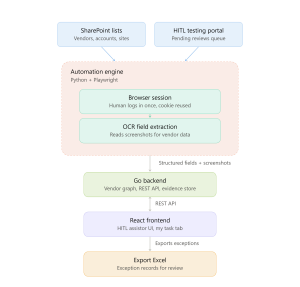
Fig. 0 — Architecture Overview. Data flows from SharePoint and the HITL portal, through a debug-controlled browser, into the automation engine. An OCR engine reads every screenshot pixel-by-pixel to recognize each field directly from the image — Vendor ID, Paygroup, Factory, Vendor Sites, Account Numbers, and GL Codes — so every vendor card the validator sees is backed by a verified value.
- Ingestion & Authentication — The application launches a debug-enabled Microsoft Edge instance (or connects to an existing one) and directs the validator to log into SharePoint and the HITL portal. Once authenticated, the session cookie is reused for all subsequent automation.
- Input Stage — The validator chooses between two modes: Single Vendor (type a vendor name and harvest immediately) or Bulk Upload (drop an .xlsx, .xlsm, or .csv file containing a vendor list).
- Automation Engine — A Python Playwright script navigates to the four required SharePoint lists, searches for each vendor, captures full-page screenshots of every record found, and an OCR engine reads that screenshot pixel-by-pixel to recognize each field (Vendor ID, Paygroup, Factory, Vendor Sites, Account Numbers, GL Codes) directly from the image — no DOM parsing or CSS selectors involved, so nothing breaks when SharePoint’s layout or class names change blank.
- Local Storage & Graph — The extracted data and screenshots are stored locally in an in-memory graph structure (backed by a Go backend). Each vendor becomes a node; each screenshot becomes an auditable edge.
- HITL Validation UI — The React frontend renders the harvested vendor cards alongside the captured screenshots. Validators can inspect fields, compare against the AI extraction, and mark the record status.
- My Task Automation — A dedicated tab walks every submission sitting in Pending Reviews inside the HITL portal: records marked “Ready to Process” are submitted automatically, and records marked “Requires Review” are cancelled and screenshotted for the operations team — no manual portal clicking required.
The tech stack is intentionally layered:
- React (Frontend): React (Frontend) — Provides a responsive, tabbed interface with real-time search, screenshot galleries, and task automation controls.
- Go (Backend): Go (Backend) — Handles file I/O, in-memory graph storage, and serves the REST API to the frontend.
- Python + Playwright (Automation): Python + Playwright (Automation) — Manages browser orchestration, SharePoint and HITL portal navigation, data extraction, and screenshot capture.
The Application in Practice
Step 1: Setup & Instructions
When the validator first opens HITL Assistor, they land on the Instructions tab. The application walks them through a three-step setup:
- Launch debug-enabled Edge: Launch debug-enabled Edge: The app provides a copy-paste command to start Edge with –remote-debugging-port=9222 and a dedicated user data directory. This keeps the automation session isolated from the validator’s personal browsing data and satisfies security requirements by requiring explicit human login.
- Open the four SharePoint lists: Open the four SharePoint lists: Direct links to the Vendors, Accounts, Vendors Sites All, and GL Codes lists are provided. The validator logs in once, opens all four tabs, and clicks Start inside the app.
- Automated session detection: Automated session detection: If the validator is already logged in, the app detects the authenticated session and immediately opens the four lists in new tabs. If not, it prompts sign-in first.
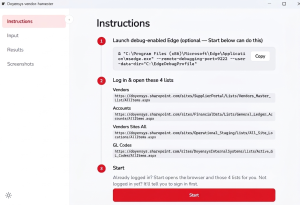
Fig. 1 — Instructions Tab. The validator is guided to launch a debug-enabled Edge session, open the four required SharePoint lists, and start the harvest. The “Start” button detects authentication state automatically.
Step 2: Input — Single Vendor or Bulk Upload
The Input tab offers two mutually exclusive modes, toggled via a segmented control.
Single Vendor Mode
A simple text field accepts a vendor name or search term (e.g., “Acme Corp”). The validator clicks Start harvest, and the Playwright script immediately searches the four SharePoint lists for that vendor, extracts every field, and captures screenshots.
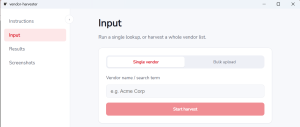
Fig. 2 — Single Vendor Input. The validator types a vendor name and triggers an immediate harvest. The backend Playwright script navigates SharePoint, extracts structured data, and captures evidence screenshots in real time.
Bulk Upload Mode
For larger batches, the validator drops a spreadsheet (.xlsx, .xlsm, or .csv) containing the vendor list. The app parses the file, queues every vendor, and runs the same extraction pipeline sequentially. A Start bulk harvest button initiates the batch.
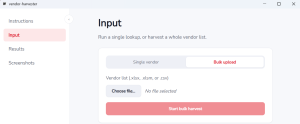
Fig. 3 — Bulk Upload Input. Instead of typing one vendor at a time, the validator uploads a spreadsheet. The application queues every row and harvests each vendor against the four SharePoint lists automatically.
Step 3: Results — Structured Data at a Glance
Once harvesting is complete, the Results tab becomes the validator’s primary workspace. Each vendor is rendered as a clean, structured card showing its Vendor Name, Vendor ID, Paygroup, Factory, Vendor Sites, and Account Numbers.
A search bar at the top lets the validator filter harvested vendors instantly. A “Clear All” button resets the local state if the validator needs to re-run a batch. Each vendor card also includes a delete icon, allowing the validator to remove erroneous harvests before submission.
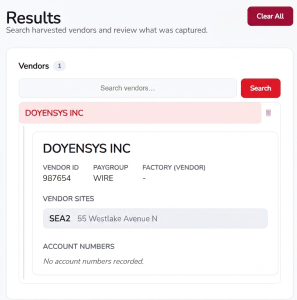
Fig. 4 — Results Tab. A harvested vendor card displays every extracted field in a scannable layout. The validator can search, delete, or drill down into screenshots without ever returning to SharePoint.
Step 4: Screenshots — Side-by-Side Evidence
The Screenshots tab is where the tool transforms from a simple scraper into an auditable HITL assistant. When a validator selects a vendor from the left panel, the right panel displays every screenshot captured during the Playwright run — typically 10–15 images per vendor, covering each SharePoint list and every scroll position.
The validator can:
- Browse screenshots with Prev / Next navigation
- See the current position (e.g., “Screenshot 1 of 11”)
- Cross-reference the structured card on the left with the raw SharePoint UI on the right
- Confirm that the extracted Vendor ID, Paygroup, and Site details match the source of truth pixel-for-pixel
This side-by-side view eliminates the need to open SharePoint in a separate window. The validator never has to search again; the evidence is already cached and correlated.
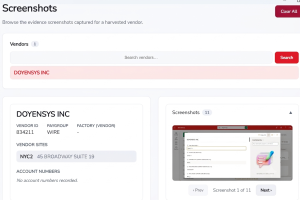
Fig. 5 — Screenshots Tab. The validator selects a vendor from the left panel. The structured data card is displayed alongside the actual SharePoint screenshots, letting the validator page through each captured image to verify every field against the live UI that Playwright recorded.
Step 5: Status Management
After reviewing the results and screenshots, the validator assigns a status to each vendor record:
- Ready to Process: Ready to Process — The AI extraction matches SharePoint perfectly; approve for downstream processing.
- Requires Review: Requires Review — A discrepancy exists (e.g., mismatched Vendor Site, missing GL Code); flag for manual investigation.
This is where the original version of the tool stopped. Marking a record “Ready to Process” was a local flag — it told the team what should happen next, but a person still had to make it happen by opening the HITL testing portal and submitting every approved invoice by hand, one at a time. On a batch of forty or fifty vendors, that meant forty or fifty separate round trips into the portal, each one a chance to lose track of where you left off.
Step 6: My Task — Automating HITL Portal Submission
This is the newest addition to HITL Assistor, built specifically to close that last manual gap. Instead of a human logging into the HITL portal and clicking Submit on every single “Ready to Process” invoice, the My Task tab does it automatically.
The My Task Instructions panel explains the feature to new HITL team members the first time they open it, so no one has to be walked through the tool by a teammate:
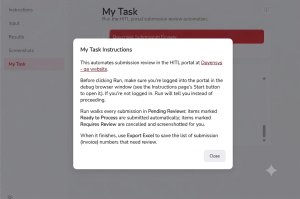
Fig. 6 — My Task Instructions. A first-run walkthrough tells new HITL team members exactly what Run does before they click it: log into the portal in the debug browser, then let the automation walk every pending submission — approving “Ready to Process” items and cancelling “Requires Review” items with a screenshot.
Once the validator clicks Run, the automation walks every submission sitting in Pending Reviews inside the HITL portal. Items marked “Ready to Process” are submitted automatically; items marked “Requires Review” are cancelled and screenshotted, so there is still an evidence trail for the ones that need a second look. A live Activity log streams every decision as it happens, and a running tally — “Ready to Process” vs. “Requires Review” — updates in real time. When the run finishes, a single Export Excel button produces a spreadsheet of every invoice number still awaiting review, ready to hand to the operations team.
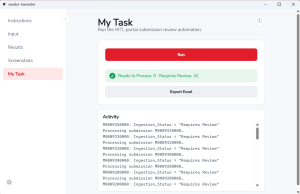
Fig. 7 — My Task Tab. The result of a completed run: every submission has been processed, the running tally shows how many were approved versus flagged, the Activity log lists each decision, and Export Excel is ready to hand off the exceptions.
What used to be dozens of individual clicks inside the HITL portal — each one in a manual login-find-submit cycle — is now a single Run. The validator job ends the moment a status is chosen; HITL Assistor takes it the rest of the way into the portal.
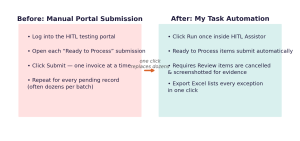
Fig. 8 — Before vs. after My Task. Manual, one-at-a-time portal submission is replaced by a single click that submits every approved invoice and flags every exception automatically.
The Efficiency Gain
Before HITL Assistor, the HITL validation workflow looked like this:
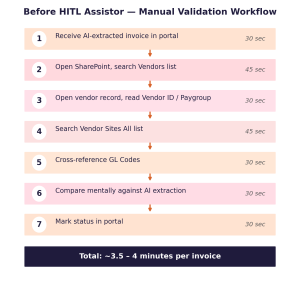
Fig. 9 — Before HITL Assistor. Seven manual steps — SharePoint searches, cross-referencing, and mental comparison — add up to roughly 3.5–4 minutes per invoice, before submission even begins.
With HITL Assistor, the workflow is:
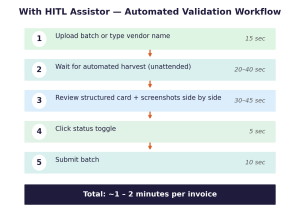
Fig. 10 — With HITL Assistor. Automated harvesting and side-by-side evidence collapse the same review into roughly 1–2 minutes per invoice.
The time savings come from three sources:
- Automation of navigation: Playwright handles every SharePoint search, scroll, and screenshot. The validator no longer touches the browser.
- Co-location of evidence: Screenshots and structured data live in the same window. The validator’s eyes move inches, not windows.
- Automated portal submission: My Task removes the final manual step entirely, turning dozens of individual portal submissions into a single Run.
At a throughput of 100 invoices per day, the team reclaimed roughly 3–4 hours of validator capacity on validation alone — and My Task now reclaims the additional time that used to go into submitting each approved invoice by hand. That time is redirected toward exception handling and quality improvement rather than repetitive clicking.
Conclusion
The problem with HITL validation was never human, and it was never the AI. It was the gap between them — a gap filled by slow, manual SharePoint navigation, fragmented Playwright scripts, manual portal submission, and zero audit trails.
By wrapping those scripts into a unified desktop application — HITL Assistor — we built an intermediary layer that respects SharePoint’s and the HITL portal’s authentication boundaries, captures immutable screenshot evidence, and presents everything through a React interface that validators actually enjoy using. The Go backend keeps state consistent across single-vendor and bulk workflows, and the My Task automation now carries approved decisions all the way into the HITL portal without a single manual submission.
The result is a HITL workflow that is not just faster, but defensible. When a downstream auditor asks, “Why was this invoice approved?” the validator can point to a timestamped screenshot of the exact SharePoint record that justified the decision. When a bulk submission fails, the team can replay the harvest locally instead of guessing what SharePoint looked like at the time.
Most importantly, the HITL team’s role has shifted from data entry to decision review — which is exactly what human-in-the-loop was supposed to be.
