
Automating SharePoint Data Extraction with Playwright and Python
The Problem: Vendor Checks Scattered Across SharePoint
Accounts-payable teams often store vendor data in several places. Vendors, accounts, GL codes, and vendor sites each live in a separate SharePoint list. As a result, reviewers must open multiple tabs just to check one vendor. This makes the process slow. It also makes the process repetitive and, over time, inconsistent.
Our solution fixes this. It automates SharePoint navigation through an authenticated Chrome session. Then it extracts data from the rendered list and detail pages. Finally, it consolidates everything into one business object and produces structured JSON and Excel reports. It does all this without relying on restricted backend APIs. For background on the protocol behind this approach, see the Chrome DevTools Protocol documentation.
Why Manual Vendor Checks Fall Short
Before automation, the manual process required business users to:
- Search for vendors manually
- Open multiple SharePoint lists
- Navigate through related records
- Copy information from several pages
- Verify GL codes
- Verify vendor sites
- Compare accounts
- Produce reports by hand
Vendor, account, site, and GL data live in separate lists with no combined view. Because of this, every lookup had to be repeated across tabs. Worse, disagreements were easy to miss. For example, a vendor-level flag could silently conflict with an account-level flag, and a busy reviewer might not catch it. Automating the process solves both problems. It reduces manual effort, and it makes the outcome consistent every time the check runs, no matter who triggers it.
The Workflow at a Glance
Launch Chrome
↓
Connect to Existing Browser Session
↓
Navigate SharePoint Lists
↓
Parse Rendered HTML (DOM)
↓
Extract Required Fields
↓
Validate & Consolidate Data
↓
Generate JSON / Excel Reports
How the HTML Parsing Works
The automation connects to Chrome using the Chrome DevTools Protocol, or CDP, instead of launching its own throwaway browser. In other words, it attaches to a window where the business user is already logged into SharePoint. Therefore, the automation inherits that session. It never needs its own credentials, and it never has to handle authentication itself. Once connected, it:
- Searches SharePoint lists
- Opens matching records
- Reads the rendered HTML elements
- Extracts field values from the DOM
- Scrolls dynamically to capture hidden fields
- Combines data from multiple SharePoint lists into a single business object
Because it reads the live DOM after authentication, rather than calling a backend endpoint, it reliably extracts data even from pages that load content dynamically after the page first renders. This approach is built on Playwright for Python, an open-source browser automation library.
Connecting to the Logged-In Chrome Window Over CDP
CDP_URL = "http://127.0.0.1:9222"

with sync_playwright() as p:
    browser = p.chromium.connect_over_cdp(CDP_URL)
    page = find_page_by_prefix(browser, ACCOUNTS_URL_PREFIX)

def find_page_by_prefix(browser, url_prefix):
    for context in browser.contexts:
        for page in context.pages:
            if page.url.startswith(url_prefix):
                return page
    return None
connect_over_cdp attaches Playwright to the already-running, already-authenticated Chrome instance at the given CDP URL. Then, find_page_by_prefix walks every open browser context and tab. It looks for the one whose URL matches the SharePoint list the automation needs, such as the Accounts list. This way, the script always operates on the correct tab, even if the user has several SharePoint lists open at once.
Locating the SharePoint Search Box on a List Tab
def find_search_box(page: Page, timeout_ms: int = 15000):
    box = page.get_by_placeholder("Search this list")
    try:
        box.first.wait_for(state="visible", timeout=timeout_ms)
        return box.first
    except PWTimeout:
        pass
    box = page.get_by_role("searchbox")
    try:
        box.first.wait_for(state="visible", timeout=timeout_ms)
        return box.first
    except PWTimeout:
        return None

def search_in_tab(page: Page, term: str, label: str, logger):
    box = find_search_box(page)
    if box is None:
        logger.log(f"[{label}] Could not find the search box.")
        return False
    box.click()
    box.fill("")
    box.type(term, delay=30)
    box.press("Enter")
    page.wait_for_timeout(1500)
    return True
find_search_box tries the placeholder text first. If that fails, it falls back to the generic searchbox role. As a result, the same function keeps working even if SharePoint changes how a list’s search control renders. Next, search_in_tab clears any existing text and types the search term with a small per-character delay. This mimics human typing, so SharePoint’s live-filtering picks it up correctly. Finally, it presses Enter and pauses briefly, giving the grid time to re-render before the caller reads any rows.
Reading Grid Rows from the Rendered HTML
def body_cells(page: Page, field_internal_name: str):
    return page.locator(
        f'div[role="gridcell"][data-automationid="field-{field_internal_name}"]'
    )

def wait_for_grid_loaded(page: Page, timeout_ms: int = 15000) -> bool:
    elapsed = 0
    while elapsed < timeout_ms:
        cells = body_cells(page, "ID")
        if cells.count() > 0 and cells.first.inner_text().strip():
            return True
        page.wait_for_timeout(400)
        elapsed += 400
    return False
body_cells targets SharePoint’s own internal data-automationid attributes instead of fragile CSS class names. Consequently, the locator keeps working across SharePoint’s own styling and layout updates. Meanwhile, wait_for_grid_loaded polls the ID column in short 400ms steps until real text shows up in the first cell. This confirms the grid has actually finished rendering before any extraction logic tries to read it.
Parsing the Item Detail Panel
SharePoint’s item detail panel only renders the fields currently scrolled into view. So, a single read at the top of the panel misses anything further down the form. To solve this, the code scrolls the container and re-reads it repeatedly, capturing every field along the way.
def _harvest_visible_panel_fields(page: Page, collected: dict):
    field_editors = page.locator(
        'div.ReactFieldEditor[data-automationtype="clientFormField"]'
    )
    for i in range(field_editors.count()):
        text = field_editors.nth(i).inner_text()
        lines = [l.strip() for l in text.split("\n") if l.strip()]
        if not lines:
            continue
        label_idx = next(
            (idx for idx, l in enumerate(lines) if "(READ ONLY)" in l.upper()), 0
        )
        label_line = lines[label_idx]
        value = "\n".join(lines[label_idx + 1:]).strip() or None
        collected[label_line] = value

def collect_panel_fields(page: Page, max_scroll_steps: int = 25) -> dict:
    container = page.locator("div.ReactClientFormContent").first
    collected = {}
    container.evaluate("el => el.scrollTop = 0")
    _harvest_visible_panel_fields(page, collected)
    last_scroll_top = -1
    for _ in range(max_scroll_steps):
        scroll_top, scroll_height, client_height = container.evaluate(
            "el => [el.scrollTop, el.scrollHeight, el.clientHeight]"
        )
        if scroll_top == last_scroll_top:
            break
        last_scroll_top = scroll_top
        if scroll_top + client_height >= scroll_height - 5:
            break
        container.evaluate(
            "el => el.scrollTop = el.scrollTop + el.clientHeight * 0.8"
        )
        _harvest_visible_panel_fields(page, collected)
    return collected
collect_panel_fields resets the panel to the top and harvests whatever is visible. It then scrolls the container down by 80% of its own height and harvests again. It repeats this until the scroll position stops changing or the panel reaches the bottom. In short, every field editor on the panel gets read exactly once, no matter how long the form is.
Mapping the On-Screen Label Back to a Clean Field Name
def find_field_value(collected_fields: dict, field_internal_name: str):
    upper_name = field_internal_name.upper()
    exact_target = f"{upper_name} (READ ONLY)"
    for label, value in collected_fields.items():
        if label.upper().rstrip("*").strip() == exact_target:
            return value
    for label, value in collected_fields.items():
        if upper_name in label.upper():
            return value
    return None
collect_panel_fields stores fields keyed by whatever label text SharePoint actually rendered. That includes trailing asterisks for required fields, or “(READ ONLY)” suffixes for fields that can’t be edited. Because of this, find_field_value normalizes the lookup. First, it tries an exact match against the internal field name plus the read-only suffix. If that fails, it falls back to a looser substring match. This way, the extraction logic can ask for a field by its clean internal name, without needing to know exactly how SharePoint chose to label it on screen.
Six Extraction Modules, One Consistent Process
The application consists of six independent extraction modules:
| Module | What it does |
|---|---|
| 1. Vendor & Account Extraction | Pulls vendor details, account details, vendor sites, factory information, and approval hierarchy |
| 2. GL Code Extraction | Retrieves GL code, description, account segments, status, and last updated date |
| 3. Default GL Extraction | Retrieves the default GL, allocation percentage, and account mapping |
| 4. Invoice Reconciliation | Compares invoice, vendor, account, vendor site, factory flag, and pay group to produce a final validation |
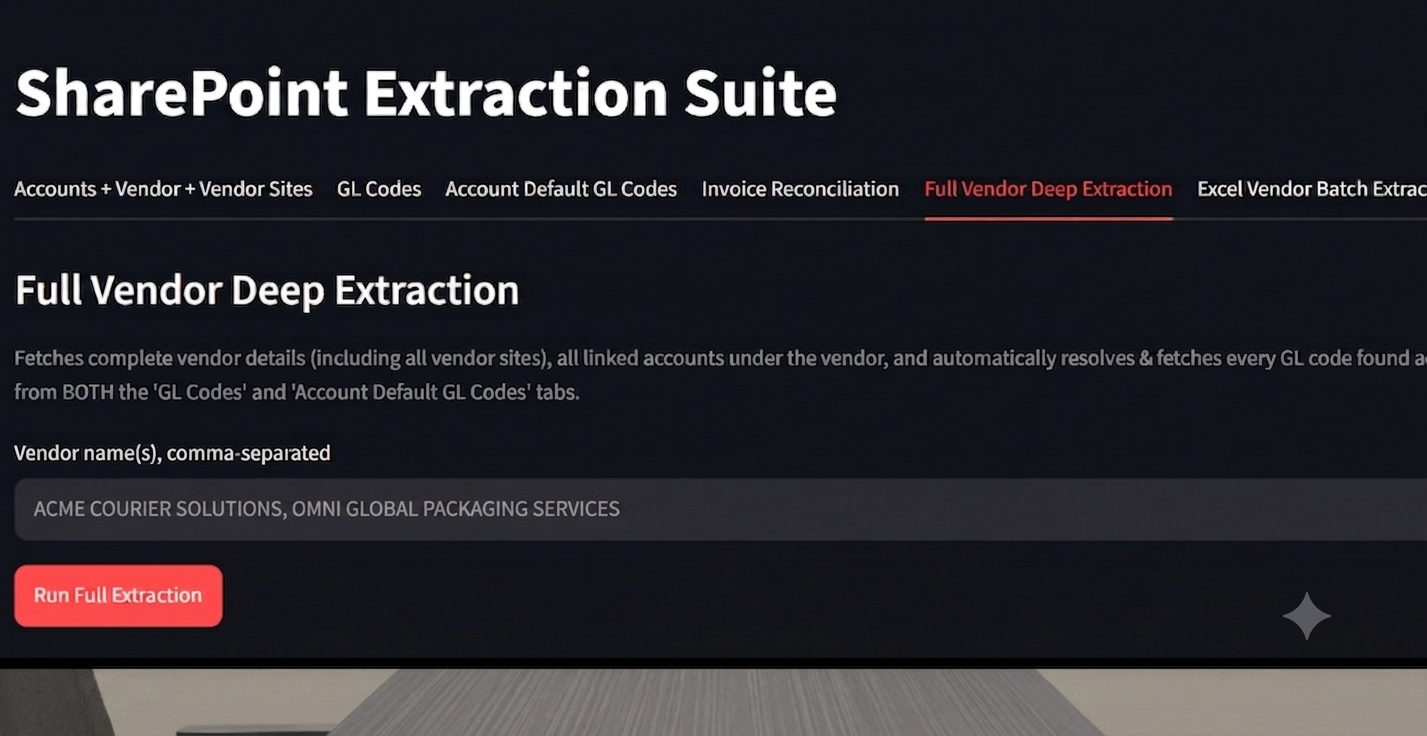
| 5. Full Vendor Deep Extraction | One click retrieves the vendor, its sites, accounts, GL codes, and default GL codes into a single JSON document |
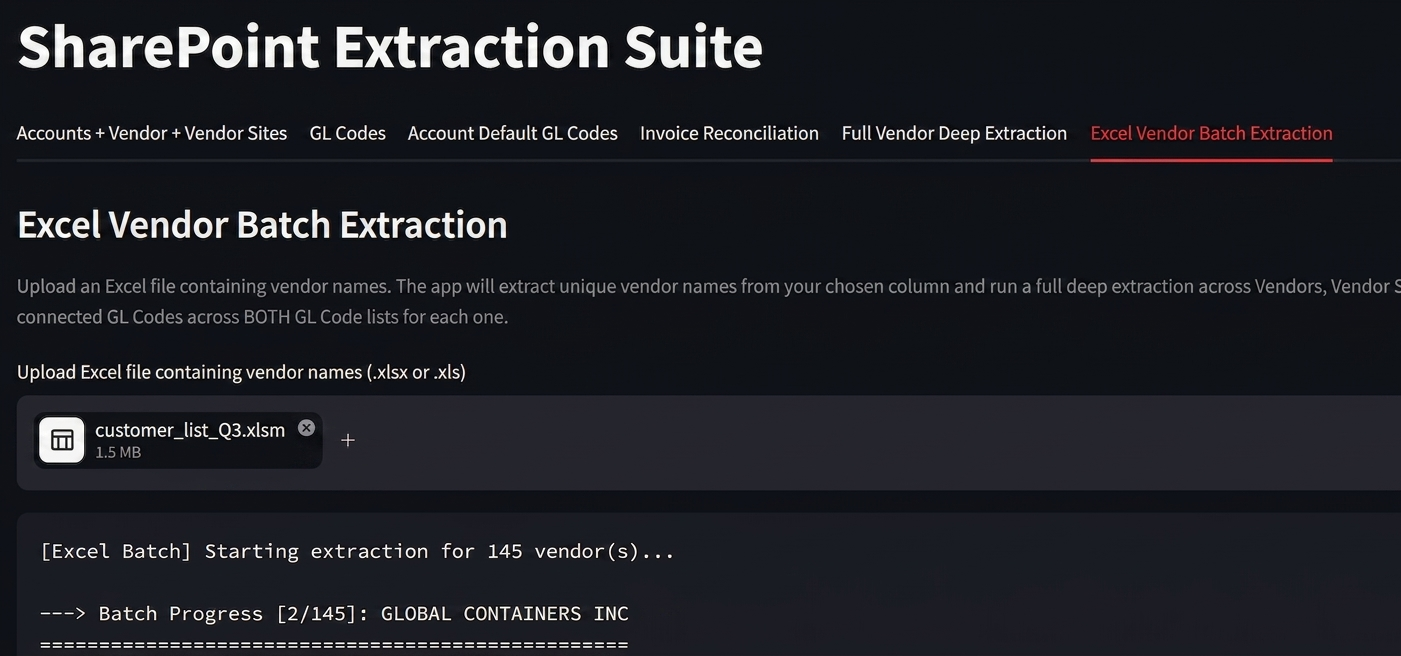
| 6. Batch Vendor Extraction | Processes every vendor in an uploaded Excel file and generates JSON and multi-sheet Excel reports |
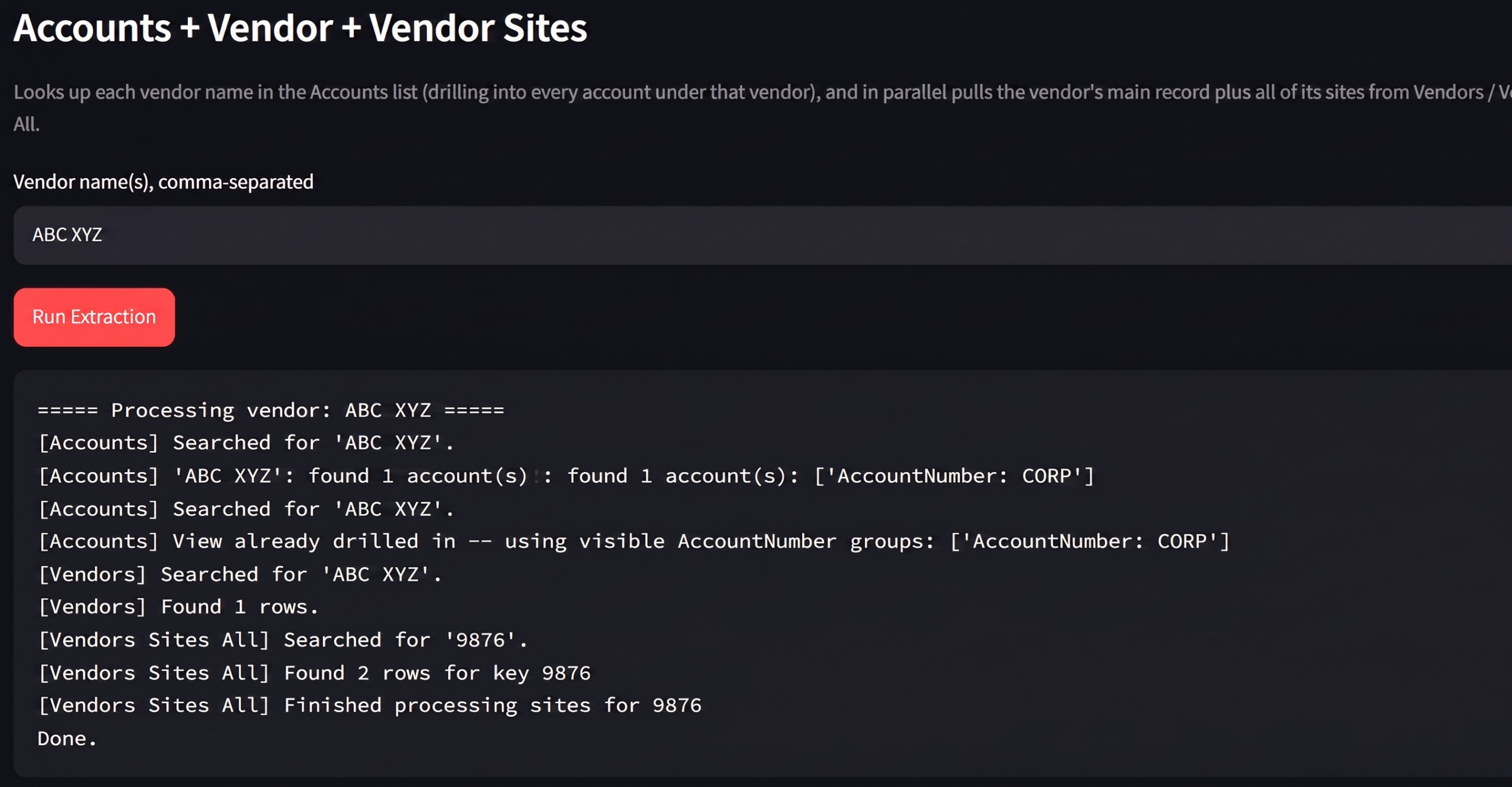
1. Vendor & Account Extraction
For a single searched vendor, this module retrieves:
- Vendor details
- Account details
- Vendor sites
- Factory information
- Approval hierarchy
2. GL Code Extraction
This module retrieves the GL code, description, account segments, status, and last updated date.
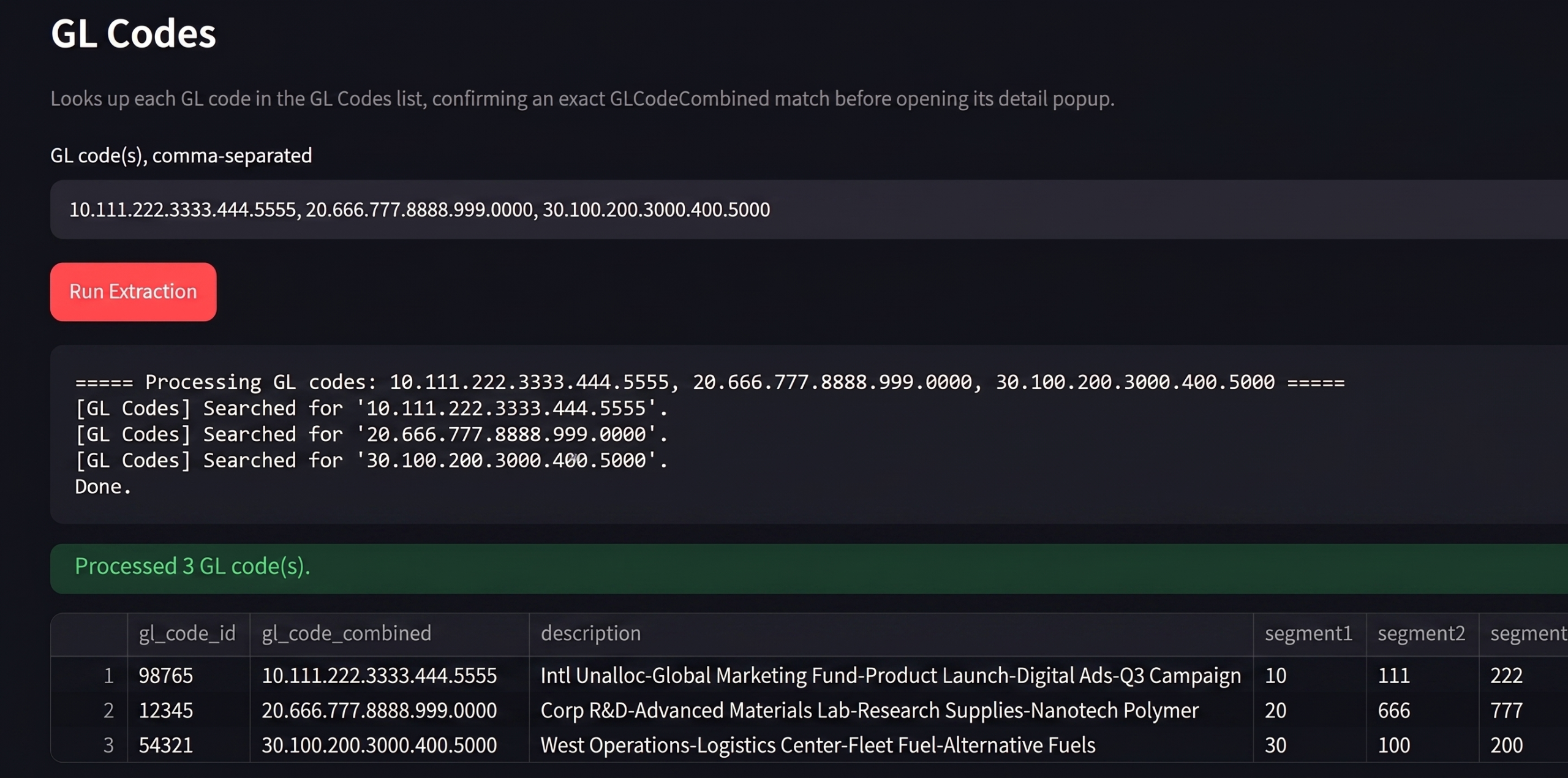
Scrolling the grid until the exact GL code match is found, then opening its detail popup:
def scan_rows_for_exact_match(page: Page, gl_code: str, max_scroll_steps: int = 60):
    grid = page.locator('div[data-automationid="spgrid"]').first
    grid.evaluate("el => el.scrollTop = 0")
    last_scroll_top = -1
    for _ in range(max_scroll_steps):
        idx, total = find_exact_row_index(page, gl_code)
        if idx is not None:
            return idx, total
        scroll_top, scroll_height, client_height = grid.evaluate(
            "el => [el.scrollTop, el.scrollHeight, el.clientHeight]"
        )
        if scroll_top == last_scroll_top or scroll_top + client_height >= scroll_height - 5:
            break
        last_scroll_top = scroll_top
        grid.evaluate(
            "el => el.scrollTop = el.scrollTop + el.clientHeight * 0.8"
        )
    return None, total

def find_exact_row_index(page: Page, gl_code: str):
    cells = body_cells(page, "GLCodeCombined")
    target = gl_code.strip().upper()
    for i in range(cells.count()):
        if cells.nth(i).inner_text().strip().upper() == target:
            return i, cells.count()
    return None, cells.count()
The GL code list can run to hundreds of rows, and SharePoint only renders the rows currently in view. So, an exact match can’t be found with a single read of the grid. Instead, scan_rows_for_exact_match scrolls the grid in the same 80%-of-viewport steps used for the detail panel. It checks for an exact match, not a partial one, against the GLCodeCombined column after every step. Then it stops as soon as it finds the row, or runs out of rows to scroll through.
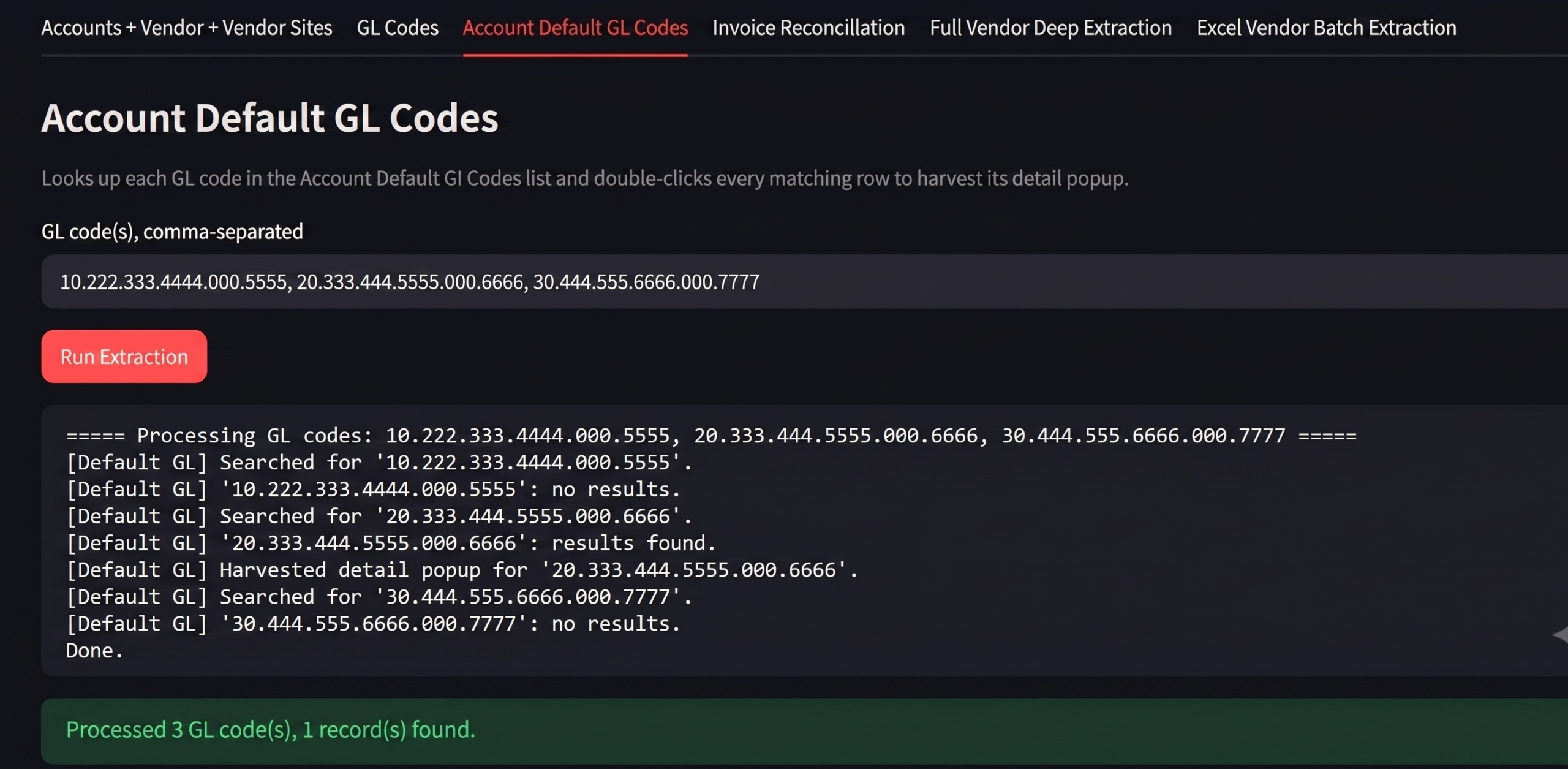
3. Default GL Extraction
This module retrieves the default GL, the allocation percentage, and the account mapping.
4. Invoice Reconciliation
This module automatically compares the following chain of records:
Invoice
↓
Vendor
↓
Account
↓
Vendor Site
↓
Factory Flag
↓
Pay Group
↓
Final Validation
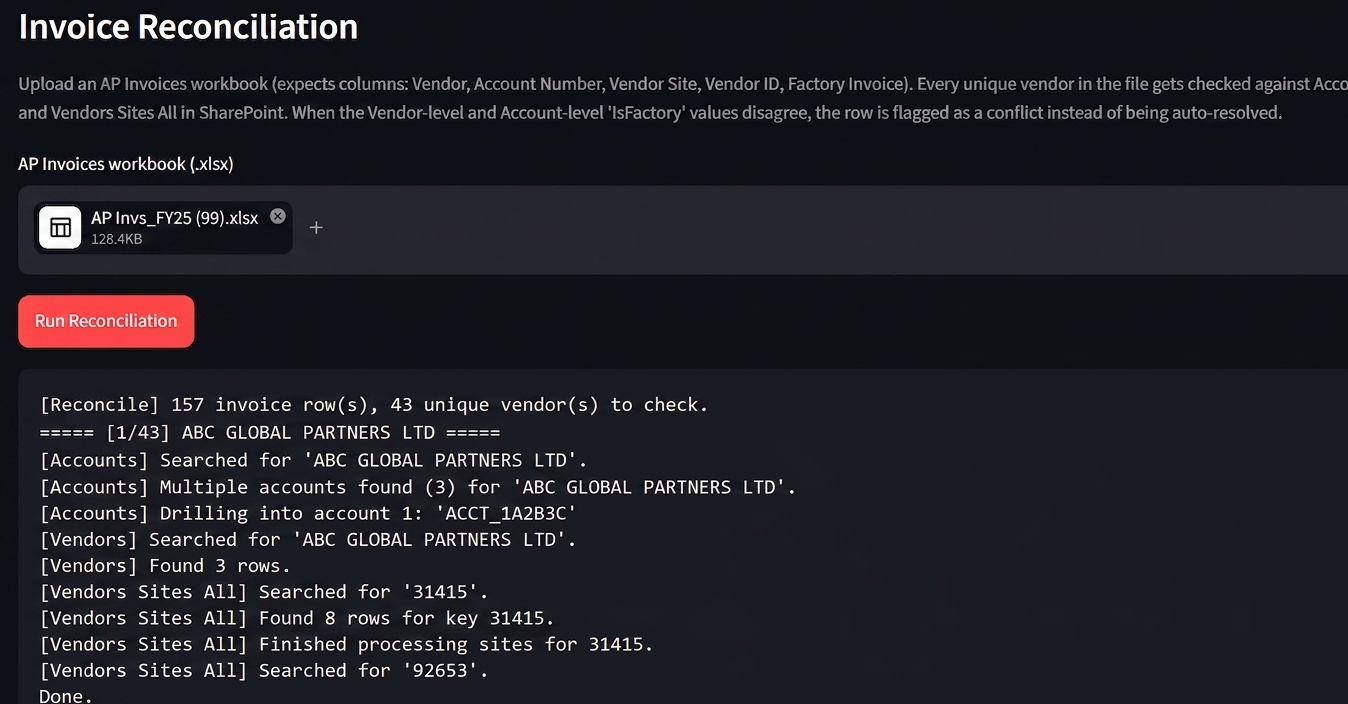
Flagging a conflict instead of silently picking a value:
conflict = (
    vendor_is_factory is not None
    and account_is_factory is not None
    and _norm(vendor_is_factory) != _norm(account_is_factory)
)
if conflict:
    factory_final = "CONFLICT - NEEDS REVIEW"
elif account_is_factory is not None:
    factory_final = account_is_factory
elif vendor_is_factory is not None:
    factory_final = vendor_is_factory
else:
    factory_final = "UNKNOWN"
Instead of defaulting to whichever value it reads first, the reconciliation logic checks whether the vendor-level and account-level factory flags disagree. If they do, it marks the field “CONFLICT – NEEDS REVIEW,” so a human has to look at it. This is safer than silently trusting one source over the other. When only one value is present, that value gets used. When neither is present, the field is marked “UNKNOWN” rather than left blank.
5. Full Vendor Deep Extraction
Vendor
↓
Vendor Sites
↓
Accounts
↓
GL Codes
↓
Default GL Codes
With one click, this module pulls everything together into a single JSON document.
6. Batch Vendor Extraction
Users can upload an Excel file containing vendor names. From there, the application:
- Processes every vendor
- Performs a complete extraction
- Builds JSON
- Generates Excel reports
- Produces multi-sheet output
Technical Architecture
The application is built as a Streamlit UI on top of Playwright, giving business users a simple front end for a fairly involved automation pipeline:
User
↓
Streamlit UI
↓
Playwright Automation
↓
Authenticated Chrome Browser
↓
Rendered SharePoint HTML
↓
DOM Parsing
↓
Business Object Builder
↓
JSON Storage
↓
Excel Report Generator
What This Automation Delivers
- Eliminates repetitive navigation
- Extracts data consistently
- Reduces manual validation
- Consolidates information from multiple SharePoint lists
- Supports batch processing for large datasets
- Produces structured reports suitable for downstream processing
Conclusion
Streamlit, Playwright, and direct HTML parsing together replace slow, page-by-page vendor checks with one consistent process. Whether it’s a single lookup or a batch of hundreds, the same automated run handles it. For related reading on browser automation patterns, see our guide to browser automation best practices and our walkthrough on building internal tools with Streamlit.
Because the automation reads what the browser actually renders, rather than relying on a backend API, it keeps working even where SharePoint APIs are limited or unavailable. At the same time, it still produces clean, structured JSON and Excel reports that are ready for downstream use.
